TidySmith
C# code put in the order your team wants: members sorted and grouped with a preview and one Undo, regions by your rules, comments wrapped to your line length — and gray dots in the editor where something can be tidied.
Free · Visual Studio 2022 and 2026 · 14 UI languages · no telemetry
Why TidySmith
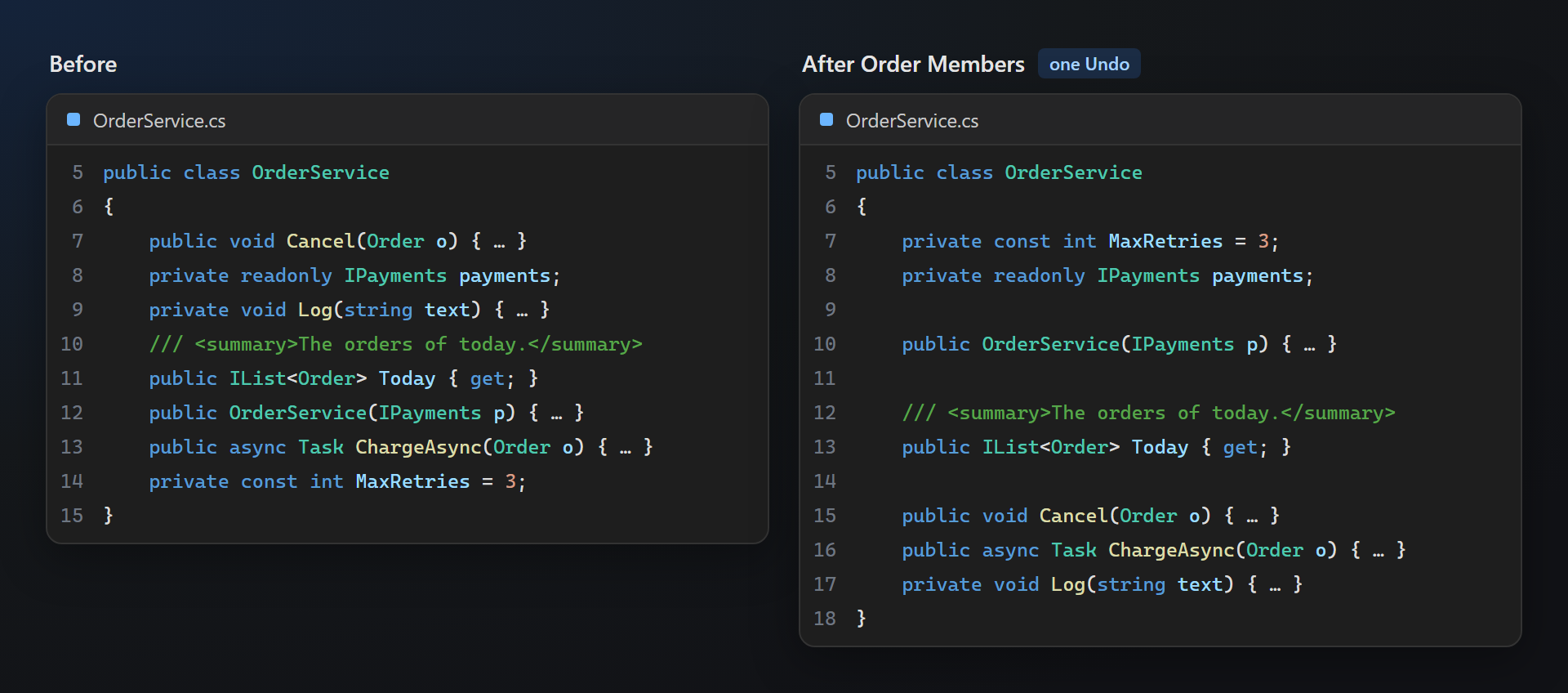
Safe by design
Built on the Roslyn syntax tree: members move with their comments, documentation and attributes; #if and #region blocks are never crossed; classes that cannot be ordered safely are left alone. A preview shows the diff first, and Apply is one Undo.
Your team's order
The order of the groups, access, static members, names — set it on the options page or put it in .editorconfig, so everyone gets the same result. Presets for StyleCop and CodeMaid are built in.
Found without a manual
Gray dots under a class that is out of order or a comment that is too long; Ctrl+. offers the fix next to the Visual Studio actions. Once you know the commands, turn the hints off.
Free, without strings attached
No subscriptions, no "pro" version, no data collection, no messages in the Output window or at startup. The only thing we will ever ask — after you have used it for a while — is a rating on the Marketplace. Works on Visual Studio 2022 and 2026, x64 and ARM64.
Features
- Order members of a class, a file or the files selected in Solution Explorer — with a preview of what moves.
- Hints in the editor: gray dots where something can be tidied, the fix in the light bulb (Ctrl+.).
- Regions by your rules: by member group, by access or both, with your region names; or no regions at all.
- Comments that fit:
//and///comments wrapped to your line length, short lines joined. - Tidy on save: the steps you choose run when a C# file is saved; off by default.
- Structure window: the members of the file, size and complexity of methods, drag to reorder.
- Small helpers: switch to the related file, sort and join lines, find the file in Solution Explorer, collapse or expand only the regions.
Every command is in Edit › TidySmith and in the context menu of the code editor (right-click › TidySmith); Order Members also in the context menu of files, folders and projects in Solution Explorer.
Order members
Order Members… sorts the members of a class by kind (constants, fields, constructors, properties, methods…), then by access (public first), static before instance, and by name if you want — in the order set on the options page or in .editorconfig.
- A preview first: the diff of what moves; Apply is one edit, so one Undo takes it all back. “Don't ask again” turns the preview off.
- Where: the class at the caret or the whole file (chosen in the preview), or every C# file selected in Solution Explorer — files, folders, projects.
- What moves with a member: its comments, documentation and attributes. Blank lines are kept the way they were; one blank line goes between groups.
- What is never touched: members inside
#ifor#regionare ordered only within their block; classes with a member on the line of a brace, two members on one line or syntax errors are left as they are; generated files (*.g.cs,*.Designer.cs) are skipped.
Presets to start from: TidySmith (overloads and interface implementations kept together), StyleCop (SA1201, SA1202, SA1204 — strictly by access) and CodeMaid (the CodeMaid default, for teams moving from it).
Hints in the editor
Where TidySmith can help, the name gets three gray dots — the way Visual Studio marks its own suggestions. The pointer on them says what; Ctrl+. offers the fix, with a preview of the change.
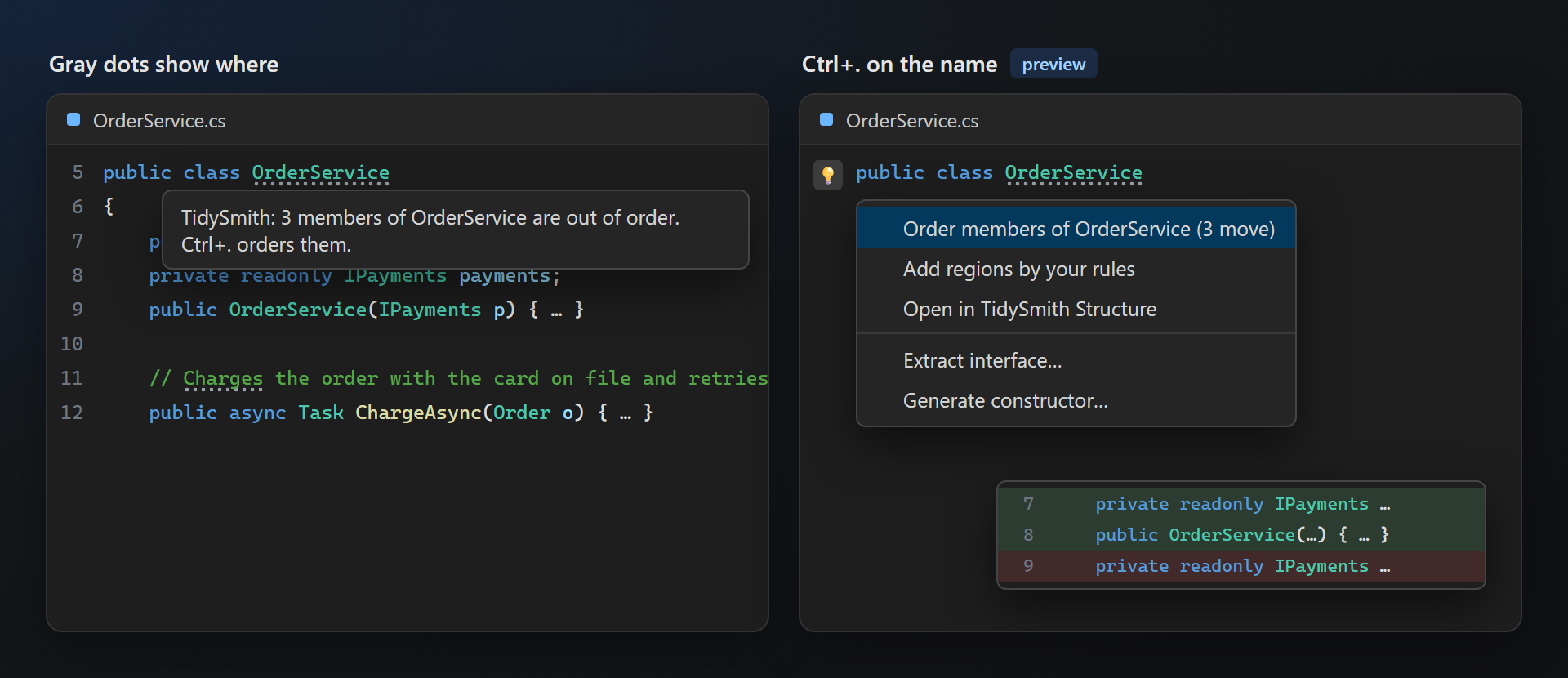
| Caret on | Ctrl+. offers |
|---|---|
| The name of a class | Order members of the class or the file, add regions by your rules, remove the regions of the class, open in the Structure window |
| A comment longer than the line length | Wrap the comment |
A #region line | Remove this region (the code stays) |
| Several selected lines | Sort lines (only a flat list), join lines |
Dots appear for a class out of order, a comment longer than the line length and regions that differ from your rules — nothing else. The dots and the light bulb actions have separate switches; “Only in files I have changed” keeps old code quiet.
Regions by your rules
Add Regions to This File… puts #region lines where your rules say, after a preview. Regions are a team decision, so the default is no regions: the command opens the settings until you choose.
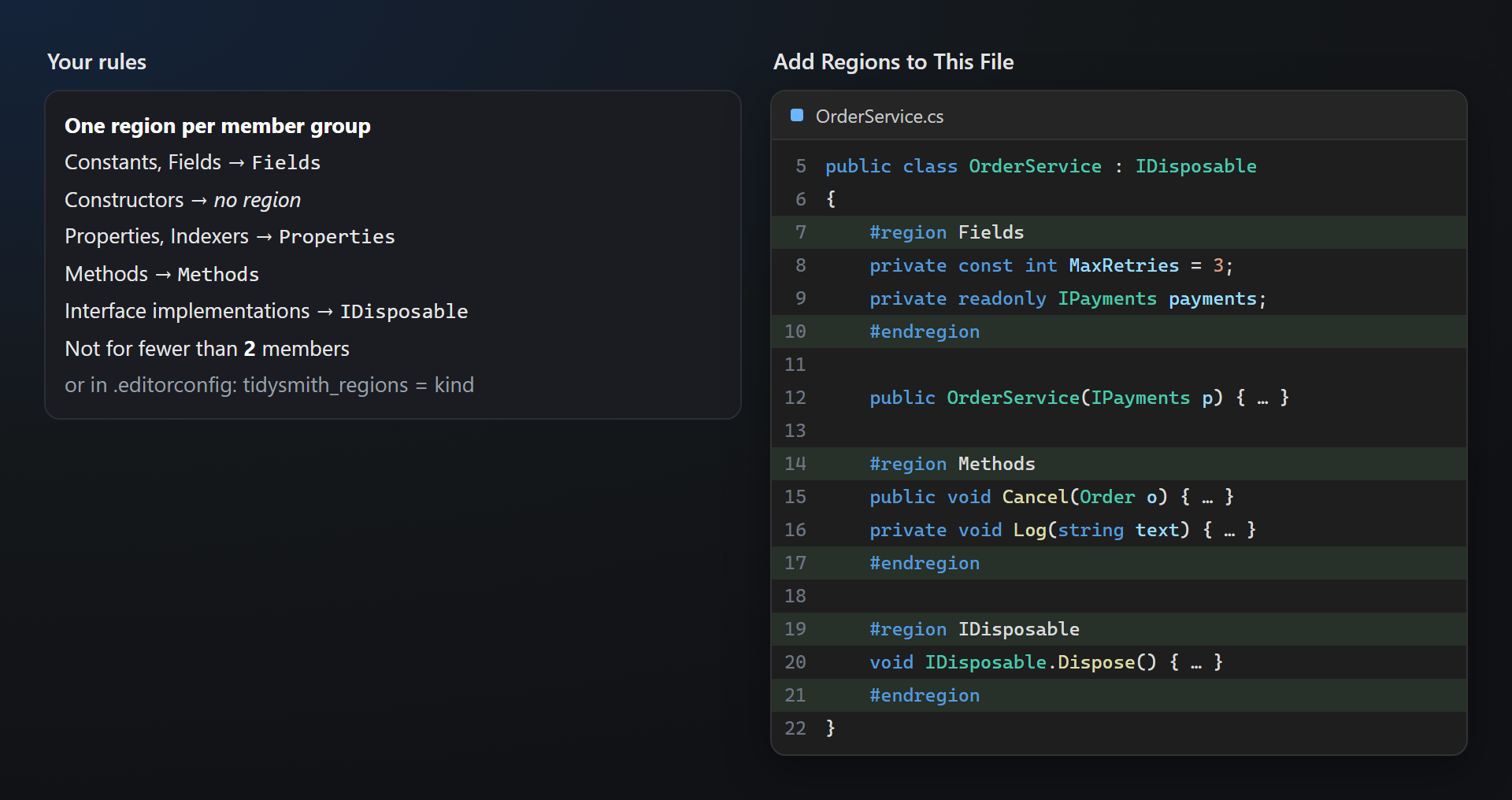
- How to split: one region per member group (Fields, Methods…), per access (Public, Private…), or both (Public methods).
- Your names: every group has its region name; groups with the same name share a region, a group that is off stays outside regions. Interface implementations can get a region named after the interface (IDisposable).
- No noise: fewer members than the minimum (2 by default) get no region; a region around one constructor helps nobody.
- Run it again any time: the regions inside classes are rebuilt, not nested. Members are ordered first, so each group is in one piece.
- By hand: Add Region Around Selection (the caret waits after
#regionfor the name), Remove Region at Caret, Remove Regions in This File — only the#regionand#endregionlines go, the code stays.
StyleCop rule SA1124 forbids regions; that is why the default is no regions — and why tidy on save removes them with that setting.
Tidy on save
When a C# file is saved, TidySmith can order its members, put regions as the rules say, wrap comments and remove trailing spaces and extra blank lines — each step has its own switch. Only the file being saved, never generated files; the status bar says what changed, and Ctrl+Z takes it back. Tidy This File runs the same steps on demand.
Off by default. Turn it on once Order Members gives the result your team wants — otherwise the first save of an old file reorders it all.
Structure window
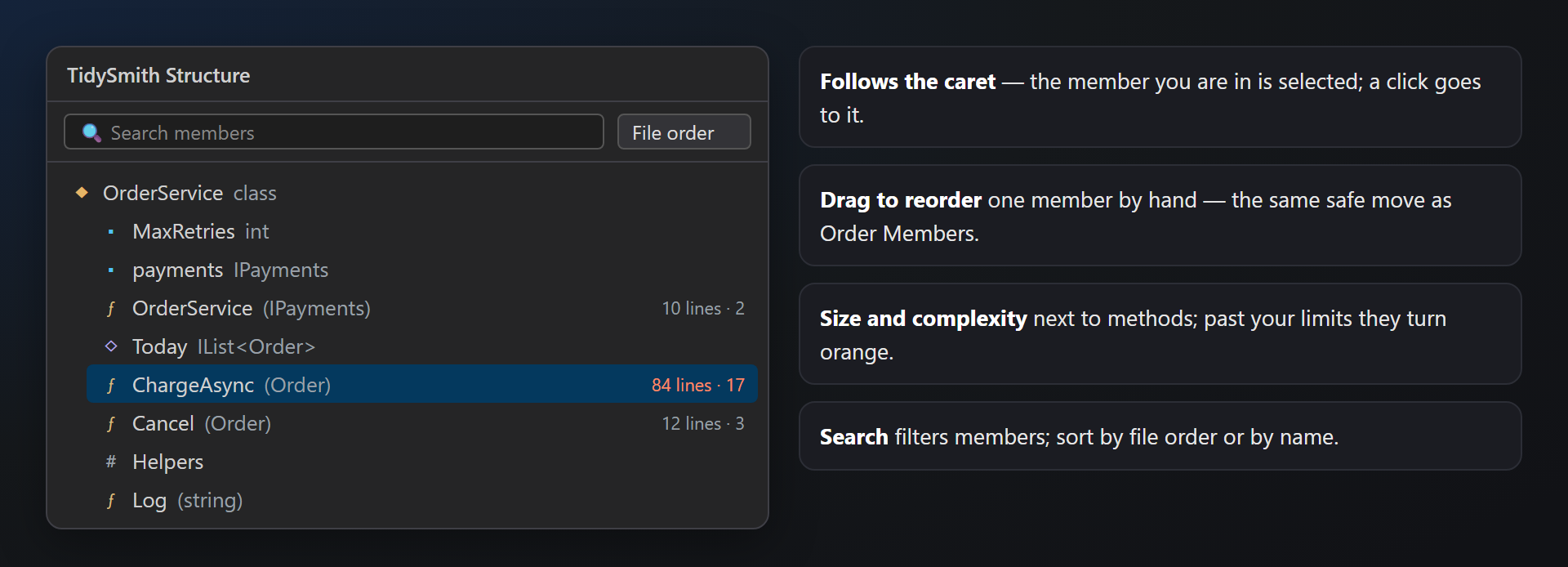
View › Other Windows › TidySmith Structure: the types and members of the active C# file. It follows the caret, a click goes to the member, search filters, and a member dragged onto another moves there — the same safe move as Order Members. Methods show their length and cyclomatic complexity; past the limits on the options page they turn orange.
Small helpers
The commands people missed from CodeMaid, in Edit › TidySmith and the context menu of the editor.
Switch File
Opens the file that belongs to the current one — markup and its code, a resource file and its designer, code and its tests — without looking for it in Solution Explorer.
| From | To (and back) |
|---|---|
MainWindow.xaml | MainWindow.xaml.cs |
Order.razor | Order.razor.cs |
Index.cshtml | Index.cshtml.cs |
Strings.resx | Strings.Designer.cs |
MainForm.cs | MainForm.Designer.cs |
OrderService.cs | OrderServiceTests.cs — also in a test project of the solution; …Test.cs and ….Tests.cs too |
The menu names the target (“Switch to OrderServiceTests.cs”) and is off when there is nowhere to go. It shines with a key of your own — see below.
Sort Selected Lines
Sorts usings, enum members or the items of a list; the commas stay where the list needs them. Only a flat list is sorted — one item per line, the same indent, no blank lines, no statements — so a method or a whole file selected by mistake is never scrambled; the status bar says why.
Join Lines
Joins the selected lines into one, or the line at the caret with the next one.
Find This File in Solution Explorer
Selects the file of the editor in Solution Explorer.
Collapse and Expand All Regions
Collapses or expands only the #region blocks; methods stay as they are. Unlike Ctrl+M, Ctrl+O (which collapses methods too) and Ctrl+M, Ctrl+L (everything).
No shortcut is taken by default — the keys of Visual Studio stay as they are. Bind any command in Tools › Options › Environment › Keyboard: type TidySmith. in “Show commands containing”.
Settings
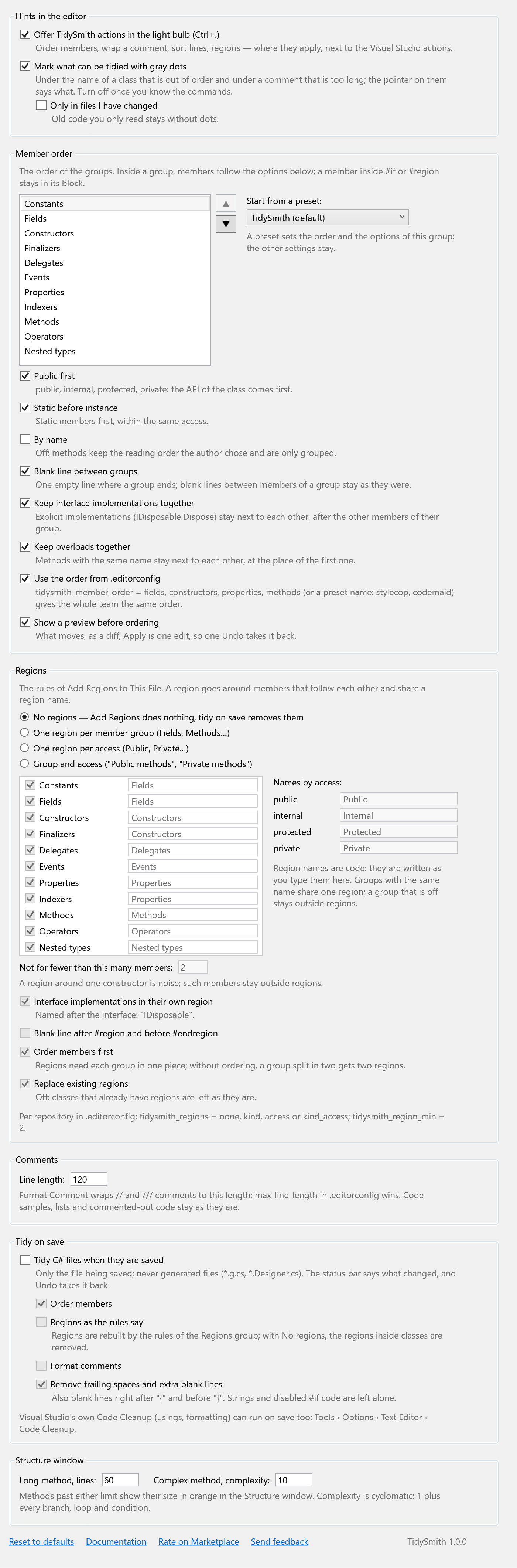
Tools → Options → SmithWorks → TidySmith. Every option has a description.
| Option | Default |
|---|---|
| TidySmith actions in the light bulb (Ctrl+.) | on |
| Gray dots where something can be tidied | on |
| Member order | TidySmith preset |
| Preview before ordering | on |
| Regions | no regions |
| Comment line length | 120 |
| Tidy on save | off |
| Long method (lines) · complex method | 60 · 10 |
| Ask for a rating on the Marketplace | on |
Settings are stored in %LocalAppData%\TidySmith; .editorconfig wins where it has a value.
Per repository: .editorconfig
Put the rules next to the code, and the whole team gets the same result; a value in .editorconfig wins over the options page (unless “Use the order from .editorconfig” is off).
[*.cs]
tidysmith_member_order = stylecop
tidysmith_regions = kind
tidysmith_region_min = 2
max_line_length = 120| Key | Values |
|---|---|
tidysmith_member_order | tidysmith, stylecop, codemaid, or the groups in order: constants, fields, constructors, properties, methods… |
tidysmith_regions | none, kind, access, kind_access |
tidysmith_region_min | The fewest members a region is made for: 2 |
max_line_length | The line length comments are wrapped to |
FAQ
How is it different from CodeMaid?
TidySmith works on the Roslyn syntax tree instead of the old code model, so #if, comments and attributes stay where they belong; it shows a preview and is one Undo; the order can live in .editorconfig; it runs on Visual Studio 2022 and 2026 on x64 and ARM64. It covers C# only, and leaves out what Visual Studio does on its own now (code cleanup, build progress).
Why was a class not ordered?
TidySmith leaves a class alone when ordering it could break or garble it: a syntax error, a member on the line of a brace, two members on one line. Members inside #if or #region move only within their block. Generated files are never touched.
Can I take a change back?
Yes: every command and every save is one edit, so one Ctrl+Z takes it back. In Solution Explorer, files that are not open are written to disk — use your version control there.
Why did Sort Selected Lines do nothing?
It sorts only a flat list, so a selection that is code — statements, blocks, lines with different indents or blank lines in between — is never scrambled. The status bar says so.
Add Regions does nothing.
The default rules are no regions. Choose how to split them in the Regions group of the settings (the command opens it), or set tidysmith_regions in .editorconfig.
What about VB, C++ or XAML?
TidySmith is for C#. Other languages may follow if they are asked for — tell us in the Feedback repository.
Does TidySmith send any data?
No. Everything runs inside Visual Studio on your files; nothing is sent anywhere — no telemetry, no requests.
Where do I report a problem or suggest a feature?
Open an issue in the Feedback repository on GitHub — there are forms for bugs and ideas (please change private names). You can also use the Q&A tab on the Marketplace.
Changelog
1.0.2
- A one-time request for a rating on the Marketplace, after the extension has been useful — with Later and Don't ask again, and an option to turn it off.
1.0.1
- Order Members and the Structure window on the SmithWorks toolbar, shared with the other SmithWorks extensions (View › Toolbars › SmithWorks).
1.0.0
- First public release.
Comments that fit
Format Comment wraps the
//or///comment at the caret (or every comment of the file) to your line length —max_line_lengthfrom.editorconfig, or 120. Long lines are broken, short ones joined, a long<summary>gets its own lines. Code samples (<code>), lists, separator lines and commented-out code stay as they are.