SnapSmith
Beautiful pictures of code, straight from Visual Studio: select the lines, click Snap…, then Copy — and paste into Teams, Slack, a slide or a blog post. Your own editor colors, a window frame, a background you like, crisp at 2x.
Free · Visual Studio 2022 and 2026 · 14 UI languages · nothing is uploaded
Why SnapSmith
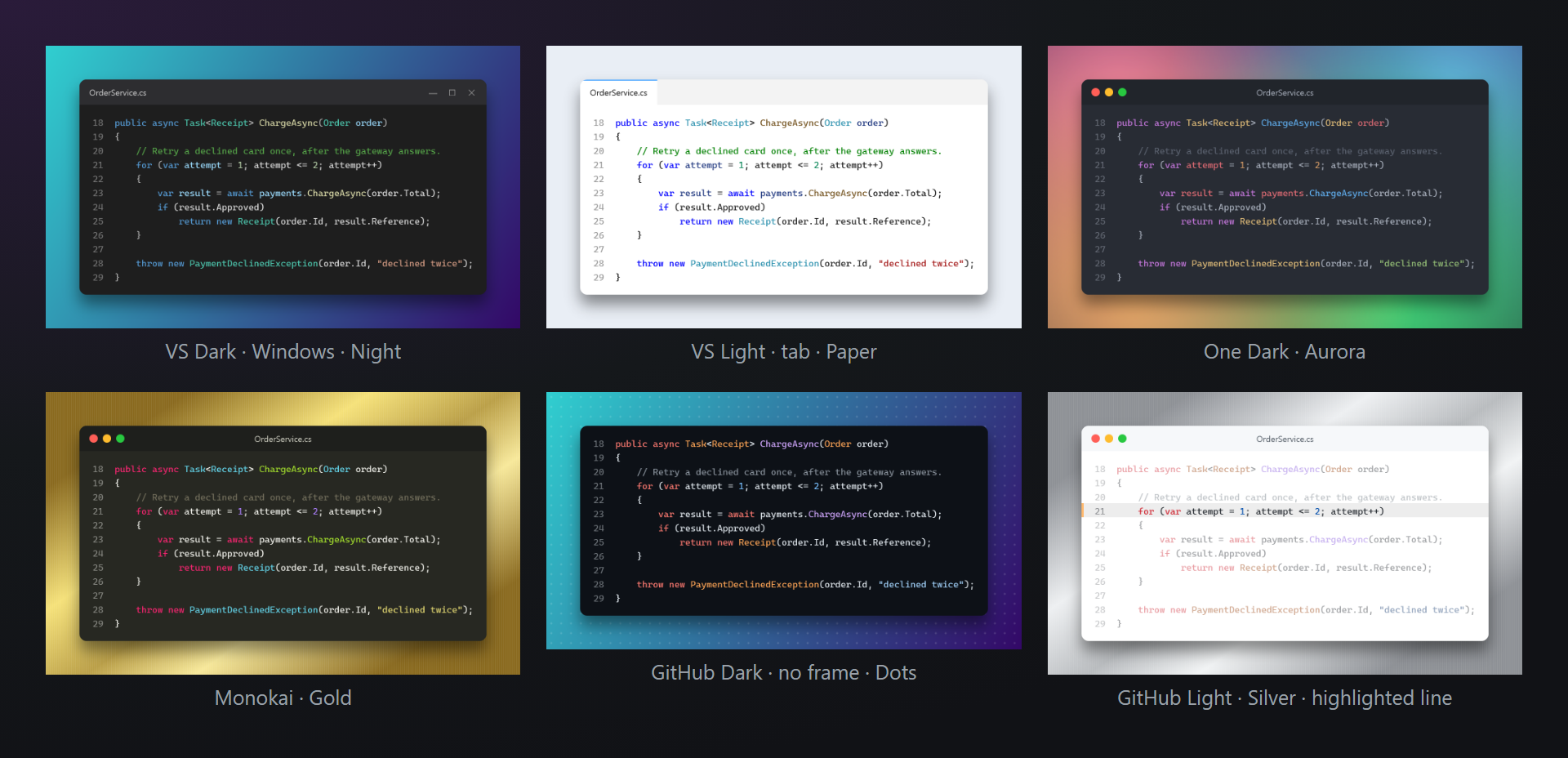
Your colors, not a guess
The colors come from the Visual Studio editor itself — the same classification of types, methods and strings you see on screen, in any language Visual Studio colors. Or pick one of 12 themes for the picture.
Three clicks, no browser
No copying code into a website and back: select, Snap…, Copy. The picture goes to the clipboard as an image that Teams, Slack, Outlook, Word and PowerPoint paste directly.
Your code stays with you
Everything is drawn inside Visual Studio. Nothing is uploaded, nothing is shared, there is no watermark on the picture.
Free, without strings attached
No subscriptions, no "pro" version, no data collection, no messages in the Output window or at startup. The only thing we will ever ask — after you have used it for a while — is a rating on the Marketplace. Works on Visual Studio 2022 and 2026, x64 and ARM64.
Features
- Editor colors as they are on your screen, or 12 themes: VS Dark, VS Light, VS Blue, Dracula, Monokai, One Dark, Nord, GitHub Dark, GitHub Light, Solarized Dark, Solarized Light, High contrast.
- Window frames — macOS, Windows, a tab or none — with padding, rounded corners and a shadow.
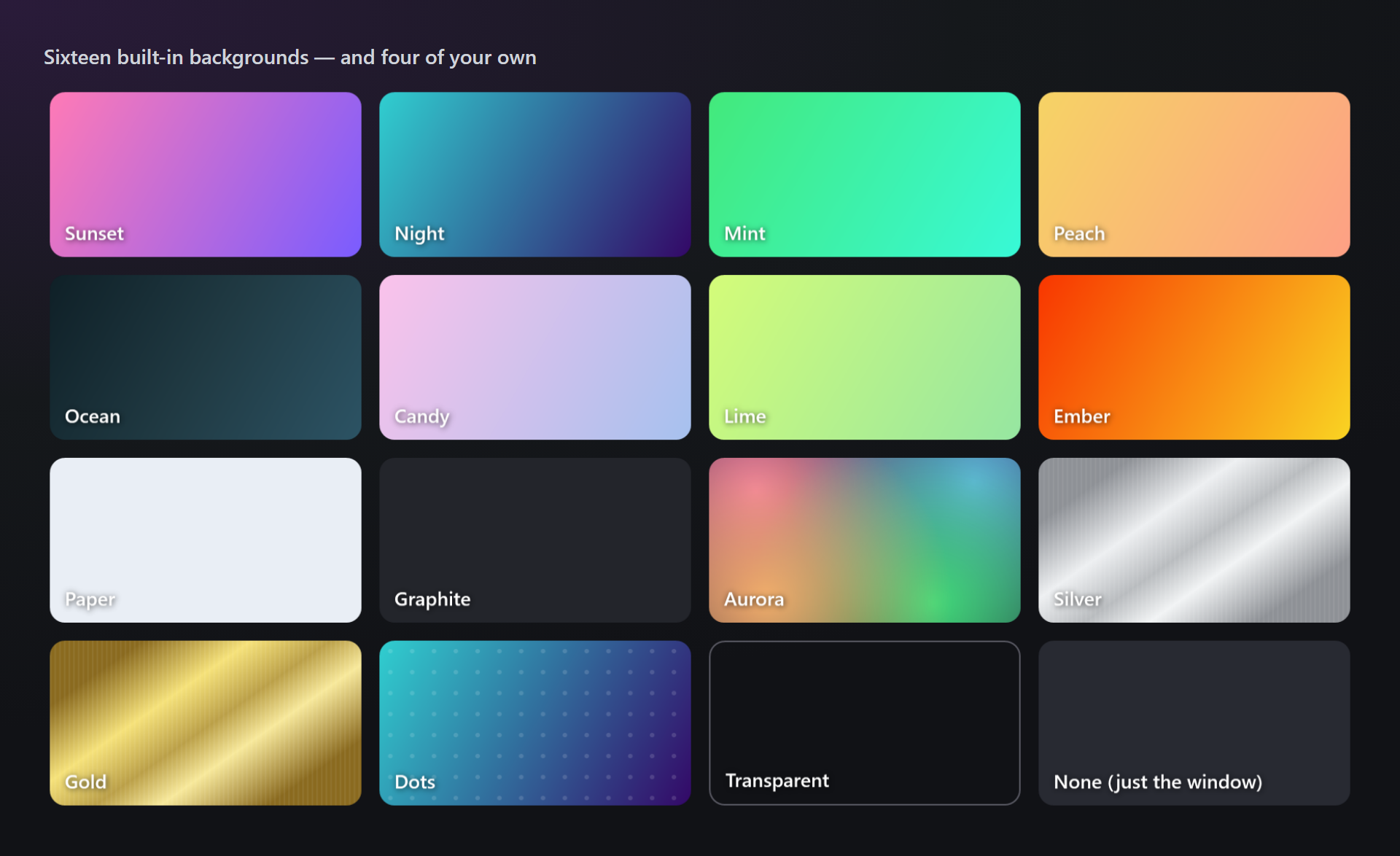
- 16 backgrounds: gradients, aurora, silver and gold metal, dots, a transparent one — and four of your own with a color picker.
- Highlighted lines: click a line number and the other lines are dimmed.
- No selection needed for C#: the method, property or class at the caret is taken whole, with the common indent removed.
- PNG or SVG at 1x, 2x or 3x, at the width of the code, of a chat message or of a 16:9 slide.
- Copy as Image: the last look in one key, without opening any window.
Taking a picture
Three steps from code to a picture in a chat:
- Select the lines in the editor. In C# you can simply leave the caret inside a method, property or class.
- Click Snap… — on the SmithWorks toolbar, in Edit › SnapSmith or in the right-click menu of the editor.
- Choose the look in the studio and click Copy (or Save). Paste with Ctrl+V wherever you want.

The SmithWorks toolbar is shared by the SmithWorks extensions: each one adds its own buttons there. If you do not see it, right-click the toolbar area of Visual Studio and turn on SmithWorks.
Without a selection in other languages, SnapSmith asks you to select the lines — it does not guess where a block begins and ends.
The studio
Snap… opens the studio: the picture on the left exactly as it will be copied, the settings on the right. Every change is shown at once, and the look is remembered for the next time and for Copy as Image.
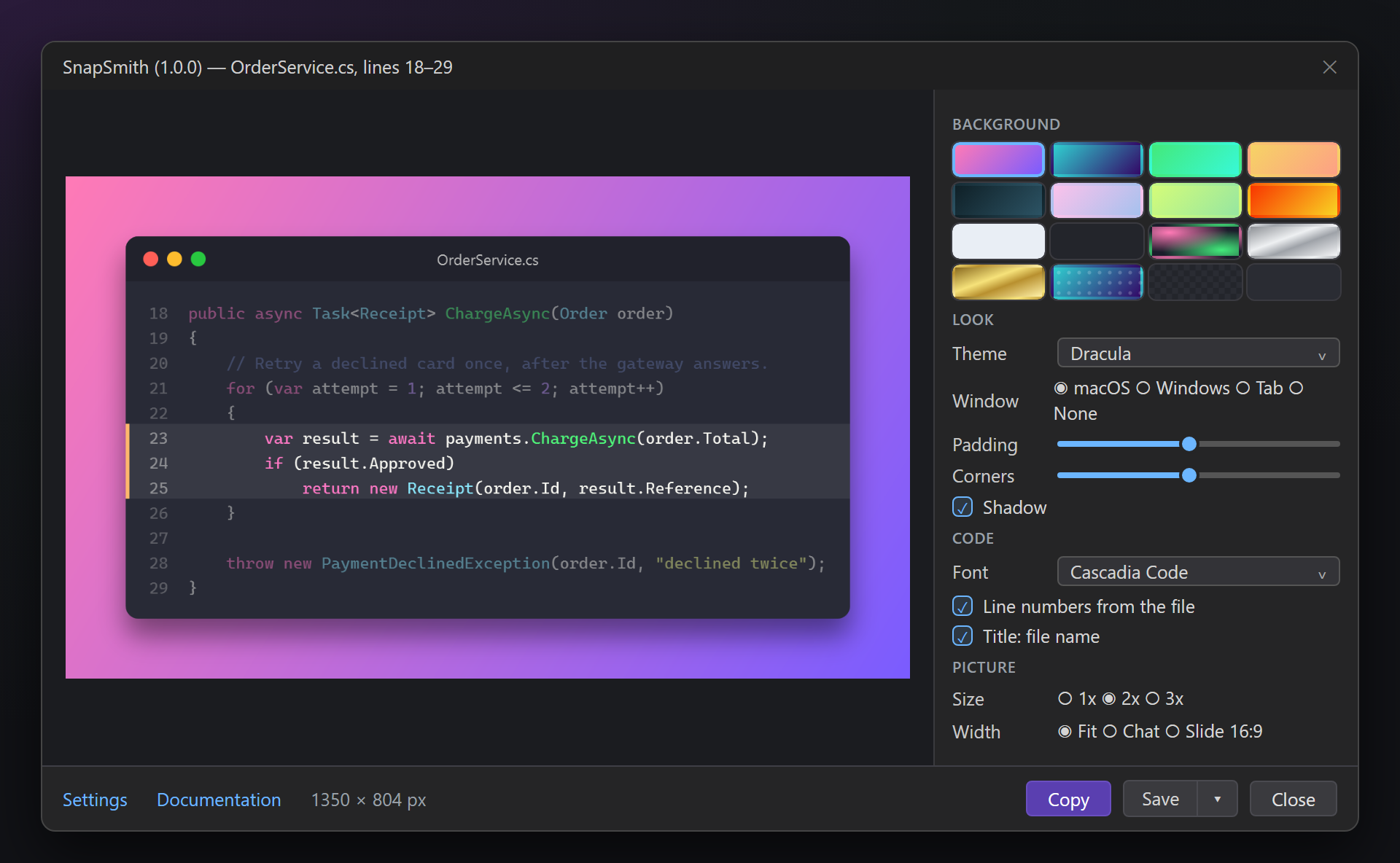
| Section | What it sets |
|---|---|
| Background | Sixteen built-in tiles and your four own backgrounds; an empty own tile opens the settings to create one. |
| Look | Theme (Editor colors or one of 12), Window (macOS, Windows, Tab, None), Padding, Corners, Shadow. |
| Code | Font (the editor font by default), Line numbers from the file, Title: file name, Ligatures. |
| Picture | Size 1x, 2x or 3x and Width: Fit (as wide as the code), Chat or Slide 16:9. The size in pixels is shown next to Copy. |
Highlighted lines
Click a line number in the preview to highlight that line; click it again to remove it. Highlighted lines get a bar at the left edge, the other lines are dimmed — the reader sees at once what the picture is about.
Editor colors or a theme
Editor colors takes the colors of your Visual Studio editor, including the colors of extensions that color code. A theme repaints the same tokens in its own palette — handy when your editor is dark and the slide is light.
Copy and Save
Copy puts the picture on the clipboard as PNG (with transparency where the background is transparent) and as a plain bitmap for older programs. Save writes a PNG; the arrow next to it offers Save as SVG… — a vector picture with real text, sharp at any size.
Backgrounds
Sixteen backgrounds are built in: soft and bright gradients, a dark night, paper, graphite, a glowing aurora, brushed silver and gold, dots, a transparent background and none at all (just the window).
Your own backgrounds
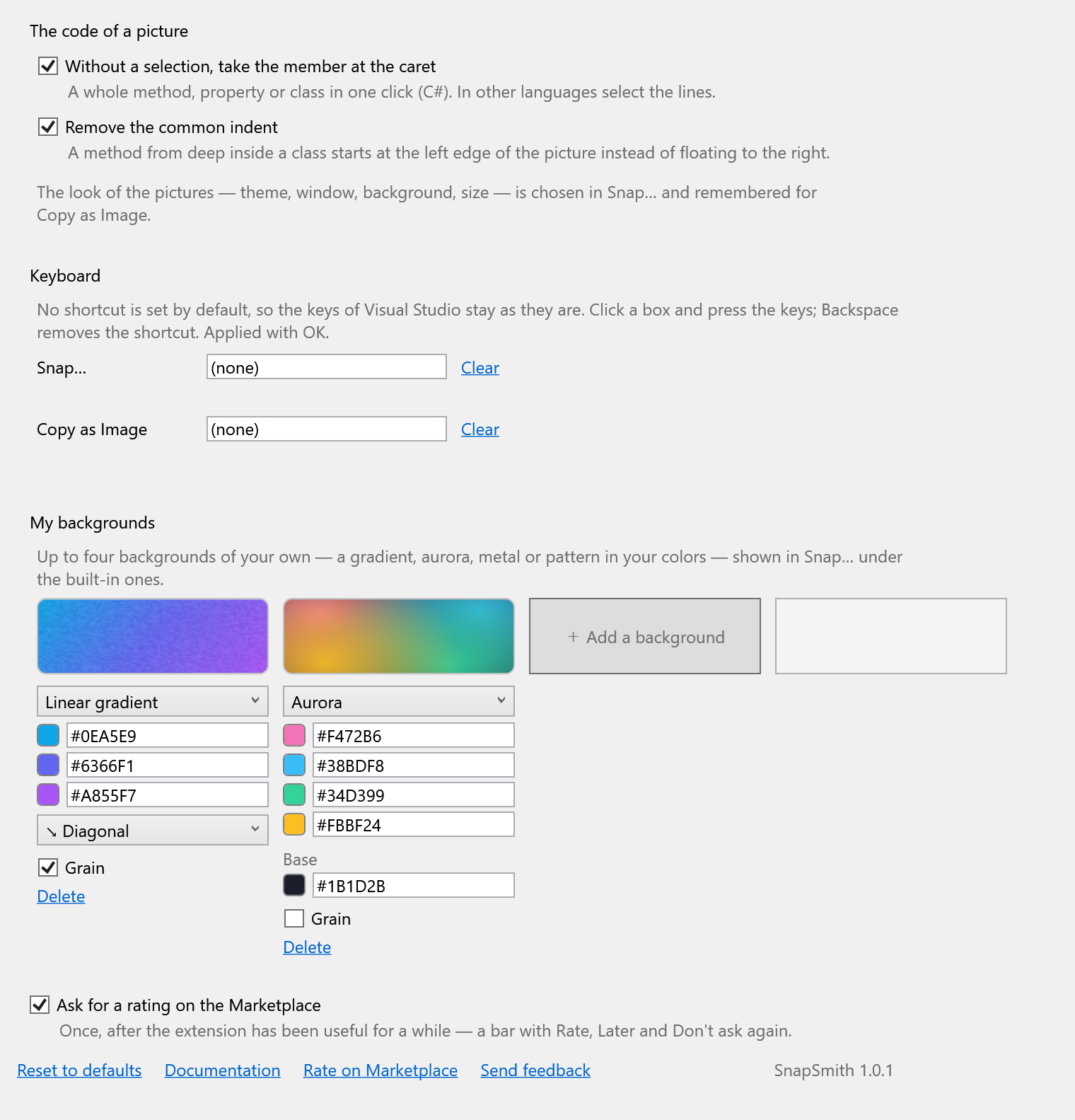
In Tools › Options › SmithWorks › SnapSmith, My backgrounds holds up to four backgrounds of your own — in your company colors, for example. They appear in the studio under the built-in ones. Each one has a kind:
| Kind | What you choose |
|---|---|
| Linear gradient | Three colors and the direction: diagonal, horizontal, vertical or diagonal up. |
| Radial gradient | Three colors from the center outward, and where the center is: the middle or one of the corners. |
| Aurora | Four colors glowing from the corners over a base color. |
| Metal | Brushed metal: Silver, Gold, Titanium, Copper or two tones of your own. |
| Pattern | Dots, a grid or stripes over a gradient of three colors. |
Every kind can have Grain — a fine noise over the background, so a gradient does not look flat.
A click on a color square opens the picker: a color field, the hue strip, the hex code, a palette, recently used colors and a pipette that takes a color from anywhere on the screen (Esc puts the first color back).
Copy as Image
Copy as Image copies the selection with the last look from the studio — no window opens. It is a command for the keyboard only, so it does not crowd the menus.
No shortcut is set by default, so the keys of Visual Studio stay as they are. Set one for Copy as Image (and for Snap… if you like) under Keyboard in the SnapSmith settings: click the box and press the keys, for example Ctrl+Alt+S. If the keys are already used, the settings say by what.
The status bar of Visual Studio confirms the copy: how many lines, which theme on which background, and the size.
Settings
Tools › Options › SmithWorks › SnapSmith (or Settings in the studio). Every option has a short description of what it does.
| Option | Default |
|---|---|
| Without a selection, take the member at the caret | On |
| Remove the common indent | On |
| Keyboard: Snap…, Copy as Image | No shortcut |
| My backgrounds | Empty |
| Ask for a rating on the Marketplace | On |
The look of the pictures — theme, window, background, size — is not on this page: it is chosen in the studio and simply remembered.
Settings are stored in %LocalAppData%\SnapSmith. Reset to defaults keeps your own backgrounds.
FAQ
Which languages does it work with?
Any language the Visual Studio editor colors: C#, Visual Basic, C++, TypeScript, JavaScript, XAML, JSON, SQL, Razor and others. Taking the member at the caret without a selection works in C#; in other languages select the lines.
The colors in the picture differ from my editor. Why?
Check that the theme in the studio is Editor colors. With one of the 12 themes the code is repainted in that theme's palette on purpose.
Where can I paste the picture?
Anywhere that accepts an image from the clipboard: Teams, Slack, Outlook, Word, PowerPoint, Paint, GitHub comments, most chats and editors. The picture is on the clipboard both as PNG and as a plain bitmap.
When should I use SVG?
For documentation, a blog or print: SVG is a vector picture with real text, sharp at any zoom and small in size. For chats and slides PNG is simpler.
Can I take a picture with a key?
Yes — set a shortcut for Copy as Image or Snap… under Keyboard in the settings, or in Tools › Options › Environment › Keyboard. None is set by default.
Does SnapSmith send my code anywhere?
No. The picture is drawn inside Visual Studio and goes only to your clipboard or to the file you save. Nothing is uploaded — no telemetry, no requests.
Where do I report a problem or suggest a feature?
Open an issue in the Feedback repository on GitHub — there are forms for bugs and ideas (please change private names). You can also use the Q&A tab on the Marketplace.
Changelog
1.0.1
- A one-time request for a rating on the Marketplace, after SnapSmith has been useful — with Later and Don't ask again, and an option to turn it off.
1.0.0
- First release: the studio with editor colors and 12 themes, window frames, 16 backgrounds and four of your own with a color picker, highlighted lines, PNG and SVG, Copy as Image, the SmithWorks toolbar.