RegexSmith
Regular expressions explained and tested right where they are written. Hover a pattern in C# for a line per piece in plain words, its groups in color and strings that match; see patterns that can hang underlined; try your own samples in the RegexSmith Tester and write the pattern back with one click.
Free · Visual Studio 2022 and 2026 · 14 UI languages · no telemetry
Why RegexSmith
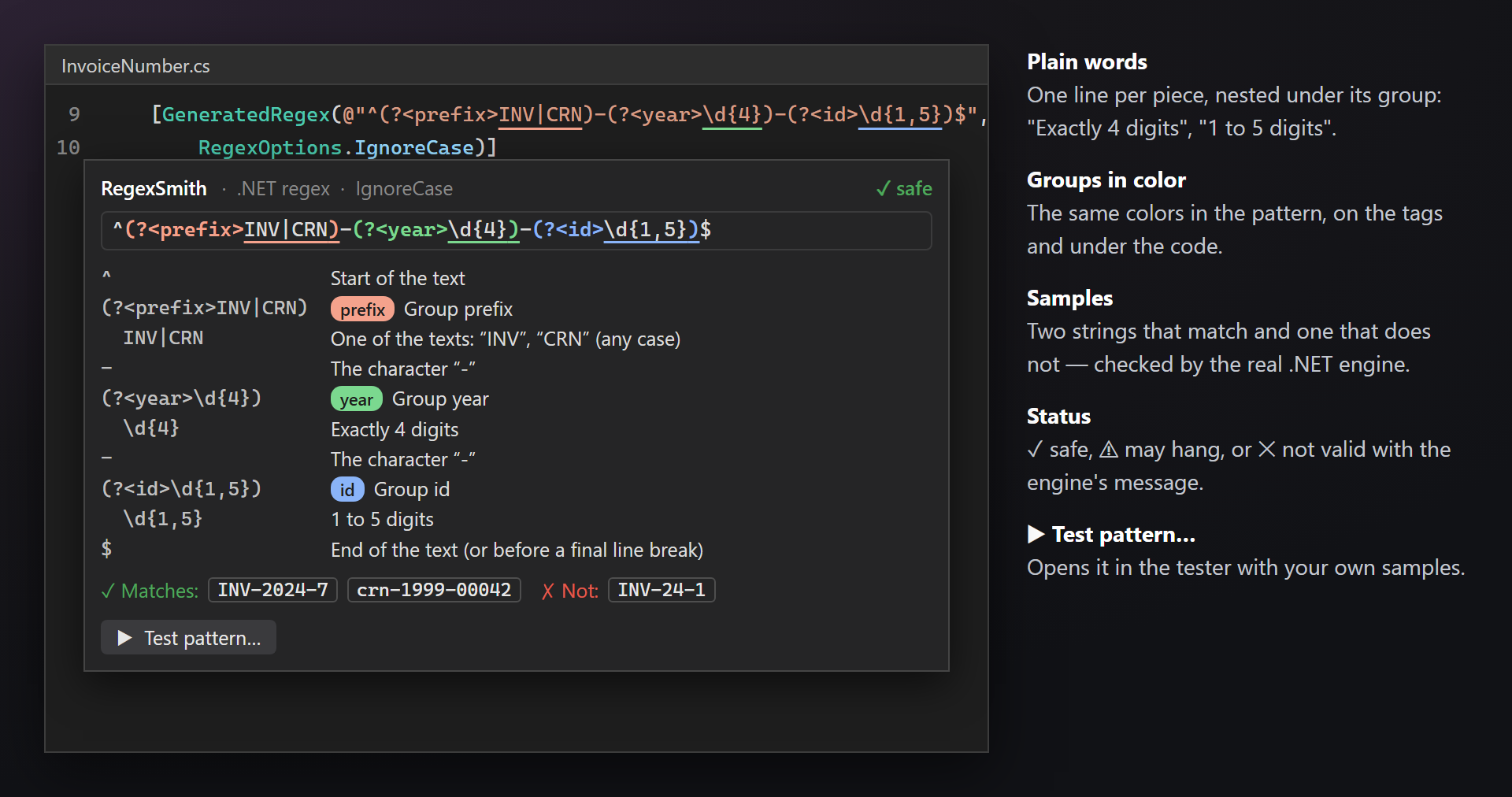
![A hover card over a [GeneratedRegex] pattern: the pattern with its groups colored, a line per piece in plain words, samples that match and one that does not, and the status ✓ safe](../regexsmith/marketplace/hero.png)
Plain words, not a syntax lesson
^(?<year>\d{4})-(?<id>\d{1,5})$ becomes "Start of the text", "Exactly 4 digits", "1 to 5 digits" — one line per piece, nested under its group, each group in its own color.
Checked by the real engine
The samples in the card and every result in the tester come from the .NET regex engine itself, with the options of the call. What you see is what your app will do.
Patterns that can hang
([a-z0-9]+\.?)+ looks harmless and can freeze a request on a long string that almost matches. RegexSmith underlines such repetitions and fixes them with Ctrl+.
Free, without strings attached
No subscriptions, no "pro" version, no data collection, no messages in the Output window or at startup. Patterns and samples stay on your computer. The only thing we will ever ask — after you have used it for a while — is a rating on the Marketplace. Works on Visual Studio 2022 and 2026, x64 and ARM64.
Features
- The hover card over a pattern in C#: the pattern with its groups colored, a line per piece in plain words, colored group tags and a status — ✓ safe, ⚠ may hang or ✕ not valid.
- Group underlines: a thin line in the group's color under each capture group right in the code; nested groups sit lower.
- Samples made from the pattern — two strings that match and one that does not — checked by the real .NET engine.
- RX001: a squiggle under repetitions that can take exponential time, with fixes in Ctrl+. and a before/after preview.
- The RegexSmith Tester, docked next to Find Results: your samples with ✓/✗ expectations, matches and groups highlighted, a groups table and a Replace tab.
- Apply to code: the edited pattern goes back into the same kind of string literal, with its options, as one Undo.
- Copy as unit test for xUnit, NUnit or MSTest — your samples become test cases.
The hover card
Hover the string of a pattern, and the usual tooltip of Visual Studio gets a RegexSmith card: what the pattern means, what it matches and whether it is safe.
Where it works
In C# files, over the pattern of:
new Regex("…"), with or withoutRegexOptions;- the static methods
Regex.IsMatch,Match,Matches,Replace,SplitandCount; [GeneratedRegex("…")];[RegularExpression("…")]— the card then says Validation: the whole value must match;- a
const stringin the same file that one of these uses.
Regular, verbatim (@"…") and raw ("""…""") strings are read the way the compiler reads them, so "\\d" and @"\d" are the same pattern.
What the card shows
| On screen | Meaning |
|---|---|
| RegexSmith · .NET regex · IgnoreCase | The kind of pattern and the options read from the call, and the status on the right. |
| The pattern | The brackets of each capture group in its color, its inside underlined in that color; the text keeps the theme color, so it stays readable. |
| Exactly 4 digits | A line per piece in plain words — "Start of the text", "One of the texts: “jpg”, “png”", "1 to 5 digits" — nested under its group. A very long pattern ends with … N more. |
| Group tags | Each group's name or number on a tag in its color — the same colors as in the pattern and under the code. |
| ✓ Matches: … ✗ Not: … | Two strings that match and one that does not, made from the pattern and checked by the real .NET engine. Spaces show as faint dots. |
| ▶ Test pattern… | Opens the pattern in the RegexSmith Tester. |
The status
| On screen | Meaning |
|---|---|
| ✓ safe | .NET accepts the pattern, and nothing in it can backtrack catastrophically. |
| ⚠ may hang | A repetition can take exponential time on long input that almost matches; the card says which kind (RX001) and that Ctrl+. offers fixes. |
| ✕ not valid | The engine rejects the pattern; the card shows its message: .NET does not accept this pattern: … |
"Safe" means only that: .NET accepts the pattern and it cannot hang. It does not mean that it matches what you intend — that is what the samples and the tester are for.
Group underlines
Every capture group of a pattern gets a thin line in its color right in the code — the same color as in the card. A long pattern with five groups can be read at a glance: which part is the year, which is the id.
A group inside another sits a little lower, so both lines stay visible. The colors go in order: salmon, green, blue, violet, amber, teal — and again.
The underlines can be turned off in the settings: Underline capture groups.
Patterns that can hang
Some patterns take exponential time on a long string that almost matches — the classic way a regex freezes a web request. RegexSmith finds them by their shape and puts a warning squiggle under the repetition; hover it for the reason.
![An RX001 squiggle under ([a-z0-9]+\.?)+ with the Ctrl+. menu open and a preview of the fix: the old pattern struck through, the new one with an atomic group](../regexsmith/marketplace/backtracking.png)
What is underlined (RX001)
- Nested repetition:
(a+)+,([a-z0-9]+\.?)+— one run of the same characters can be split between the inner and the outer repetition in very many ways. - Repetition of alternatives that match the same characters:
(\w|\d)+— a digit can be taken by either branch, so every digit doubles the work.
Not inside atomic groups or lookarounds, and never with RegexOptions.NonBacktracking — there it cannot happen.
Fixes in Ctrl+.
Put the caret on the squiggle and press Ctrl+. — each fix shows a preview: the pattern before (struck through) and after.
| Fix | What it does |
|---|---|
| Make the inner repetition atomic: (?>…) | Wraps the inner repetition in (?>…). The same strings match; the repetition can no longer be split in many ways. |
| Use RegexOptions.NonBacktracking (.NET 7+) | Adds the option to the call. Linear time on any input; needs .NET 7 or later. Offered only when the pattern allows it — no backreferences, lookarounds, atomic or balancing groups, conditionals. |
| Test this pattern in RegexSmith | Opens the pattern in the tester — offered over any pattern, not only a risky one. |
RX001 can be turned off in the settings (Hints in the editor) or with Don't show this kind of hint in its tooltip; the Ctrl+. fixes stay.
The tester
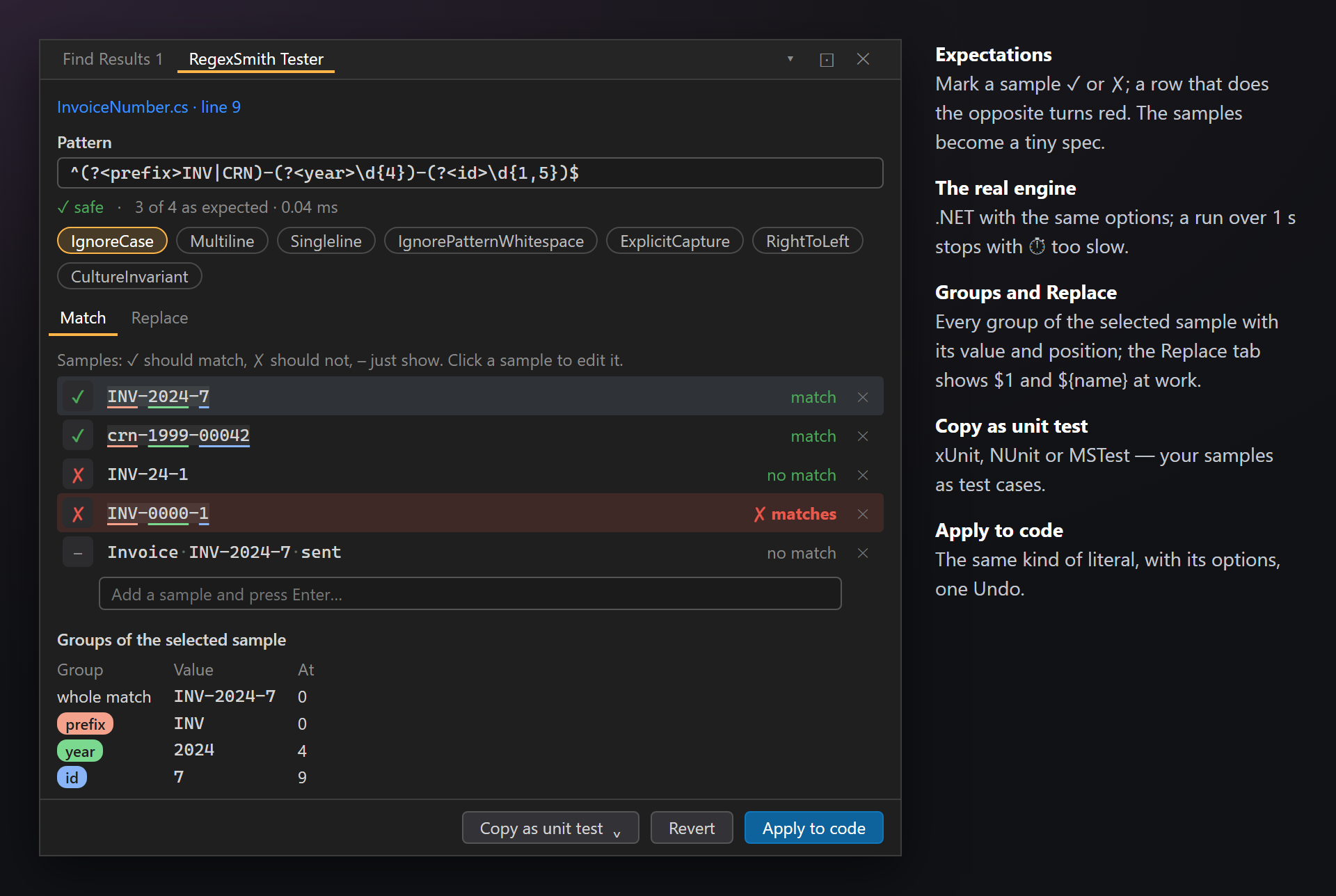
The RegexSmith Tester opens docked next to Find Results. The pattern comes from the code and stays linked to it: try it on your own samples, change it, and write it back.
Open it
- ▶ Test pattern… in the hover card;
- Ctrl+. on a pattern › Test this pattern in RegexSmith;
- right-click in a C# file › Test Regex Pattern;
- View › Other Windows › RegexSmith Tester — not linked to code: a place to try a pattern.
The pattern and its options
At the top, the file and line of the pattern — click to go there. Below, the pattern box, the status line (✓ safe, ⚠ may hang or the engine's error, then N of M as expected · ms) and the option chips: IgnoreCase, Multiline, Singleline, IgnorePatternWhitespace, ExplicitCapture, RightToLeft, CultureInvariant. Every change runs again at once.
Samples and expectations
The first time, the samples of the card are there: two that should match and one that should not. Type a new one in Add a sample and press Enter…; click a sample to edit it, ✕ removes it. The mark before each sample says what it should do — click it to change:
| On screen | Meaning |
|---|---|
| ✓ | should match |
| ✗ | should not match |
| – | no expectation, just show |
A sample that does the opposite turns red — ✗ matches or ✗ no match — so the samples become a tiny spec of the pattern. Matches are tinted, groups underlined in their colors, spaces shown as dots. A run that takes more than 1 second stops with ⏱ too slow.
Groups of the selected sample lists every match of the selected sample: the whole match, then each group with its value and position (not captured when it took no part).
Replace
The Replace tab adds a replacement box — $1, ${name}, $$ for a $ — and shows the result for each sample, as Regex.Replace would.
Copy, revert, apply
Copy as unit test puts a test with your samples on the clipboard, for xUnit, NUnit or MSTest — the spec moves into the test project.
Revert goes back to the pattern and options from the code; the samples stay.
Apply to code writes the pattern back as the same kind of literal it was (regular, verbatim or raw) together with the options — one Undo takes it back. If that code changed after the tester opened it, nothing is written: open the tester from the pattern again.
Samples are remembered per pattern and per solution in %LocalAppData%\RegexSmith\samples, so the next time they are already there. Nothing goes into the repository.
Settings
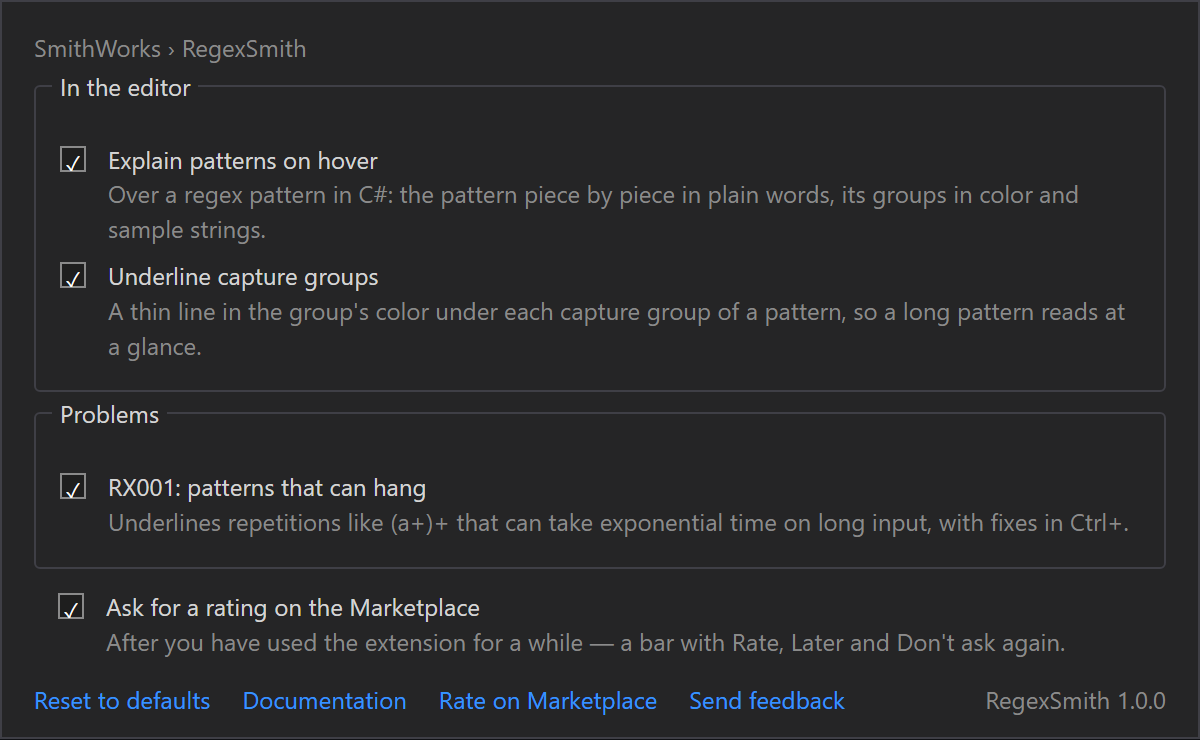
Tools › Options › SmithWorks › RegexSmith. Every option has a short description of what it does.
| Option | Default |
|---|---|
| Explain patterns on hover | On |
| Underline capture groups | On |
| RX001 Catastrophic backtracking | On |
| Ask for a rating on the Marketplace | On |
At the bottom: Reset to defaults, Documentation, Rate on Marketplace and Send feedback.
Settings are stored in %LocalAppData%\RegexSmith.
FAQ
Does RegexSmith send any data?
No. Patterns are read from the open document and run on your computer; samples are kept in %LocalAppData%\RegexSmith. No network requests, no telemetry.
The card says "✓ safe". Is the pattern right?
Not necessarily. "Safe" means that .NET accepts the pattern and no repetition in it can backtrack catastrophically. Whether it matches what you intend is for the samples to show: mark them ✓ or ✗ in the tester.
Why is there no card over my pattern?
The card appears over a string literal that RegexSmith knows is a pattern: the argument of new Regex, a static Regex method, [GeneratedRegex] or [RegularExpression], or a constant of the same file used there. A pattern built at run time (concatenated, read from settings) cannot be read. Also check Explain patterns on hover in the settings.
Which regex engine is used?
The .NET regex engine that Visual Studio itself runs on, with the options of the call. RegexOptions.NonBacktracking (.NET 7+) is read from the call too; the samples then run on the usual engine, and the same strings match either way.
Apply to code did nothing.
The code of the pattern changed after the tester opened it, so RegexSmith does not write into a place that may no longer hold the pattern — the tester says so under the buttons. Open the tester from the pattern again. Where the code has no place for options ([RegularExpression] takes none), the pattern is written and the options are not.
Does it work in VB.NET, JavaScript or TypeScript?
Not in 1.0: C# only. Other languages use other engines; ask in the Feedback repository if you need one.
Where do I report a problem or suggest a feature?
Open an issue in the Feedback repository on GitHub — there are forms for bugs and ideas (please change private names). You can also use the Q&A tab on the Marketplace.
Changelog
1.0.1
- Hints in the editor have their own list on the options page, and a tooltip link turns a kind of hint off where you see it.
1.0.0
- First release: the hover card with a plain-language breakdown, colored groups, samples checked by the .NET engine and a status; group underlines in the code; RX001 for patterns that can hang, with atomic and NonBacktracking fixes in Ctrl+.; the RegexSmith Tester with expectations, groups, Replace, Copy as unit test and Apply to code; a one-time request for a rating.