CsvSmith
CSV and TSV files readable right in the Visual Studio editor: every column in its own color, the columns lined up on screen without changing the file, the header row and the first column kept in view while you scroll. Sort, filter, move columns and copy the table as Markdown, JSON or SQL — from a toolbar on top of the file.
Free · Visual Studio 2022 and 2026 · 14 UI languages · .csv, .tsv, .tab, .psv · tested on 2,000,000 rows
Why CsvSmith
A table, not a wall of commas
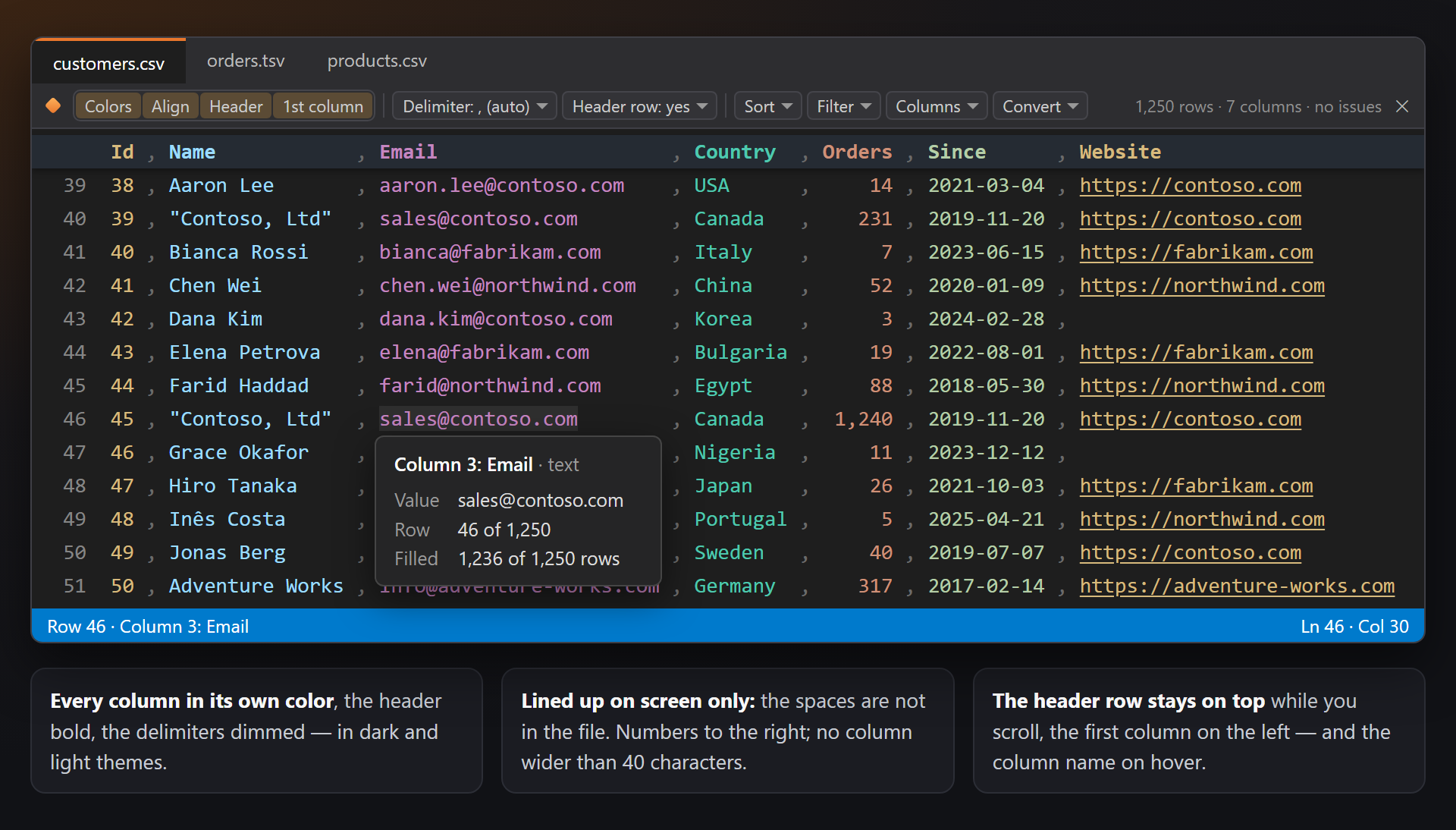
Visual Studio opens a CSV file as plain text: the eye has to count commas to find the fifth column. CsvSmith colors each column, lines the columns up and keeps the header row in sight, so the file reads like a table.
The file stays as it is
Colors, alignment, hidden rows and hidden columns are drawn on screen only — the text in the file is not touched. Only the commands marked Changes the file · one Undo write into it, and one Undo puts everything back.
Fast on big files
Only the lines on screen are parsed; a big file is measured from its first rows. Sorting, filtering and copying run in the background. A CSV file of two million rows scrolls as smoothly as a small one.
Free, without strings attached
No subscriptions, no "pro" version, no data collection, no messages in the Output window or at startup. The only thing we will ever ask — after you have used it for a while — is a rating on the Marketplace. Works on Visual Studio 2022 and 2026, x64 and ARM64.
Features
- Every column in its own color (six colors, repeated), the delimiters dimmed and the header row bold — in dark and light themes.
- Columns lined up on screen, numbers to the right; the file is not changed. No column is wider than 40, 60 or 80 characters.
- The header row and the first column stay in view while you scroll down or to the right.
- The column on hover: Column 3: Email, its type (text, number, date), the value, the row and how many rows have a value.
- A toolbar on top of the file: view switches, the delimiter and header row of this file, Sort, Filter, Columns, Convert, and the size of the table.
- Sort the rows by the column of the caret as text, numbers or dates, with one Undo; the header row stays first.
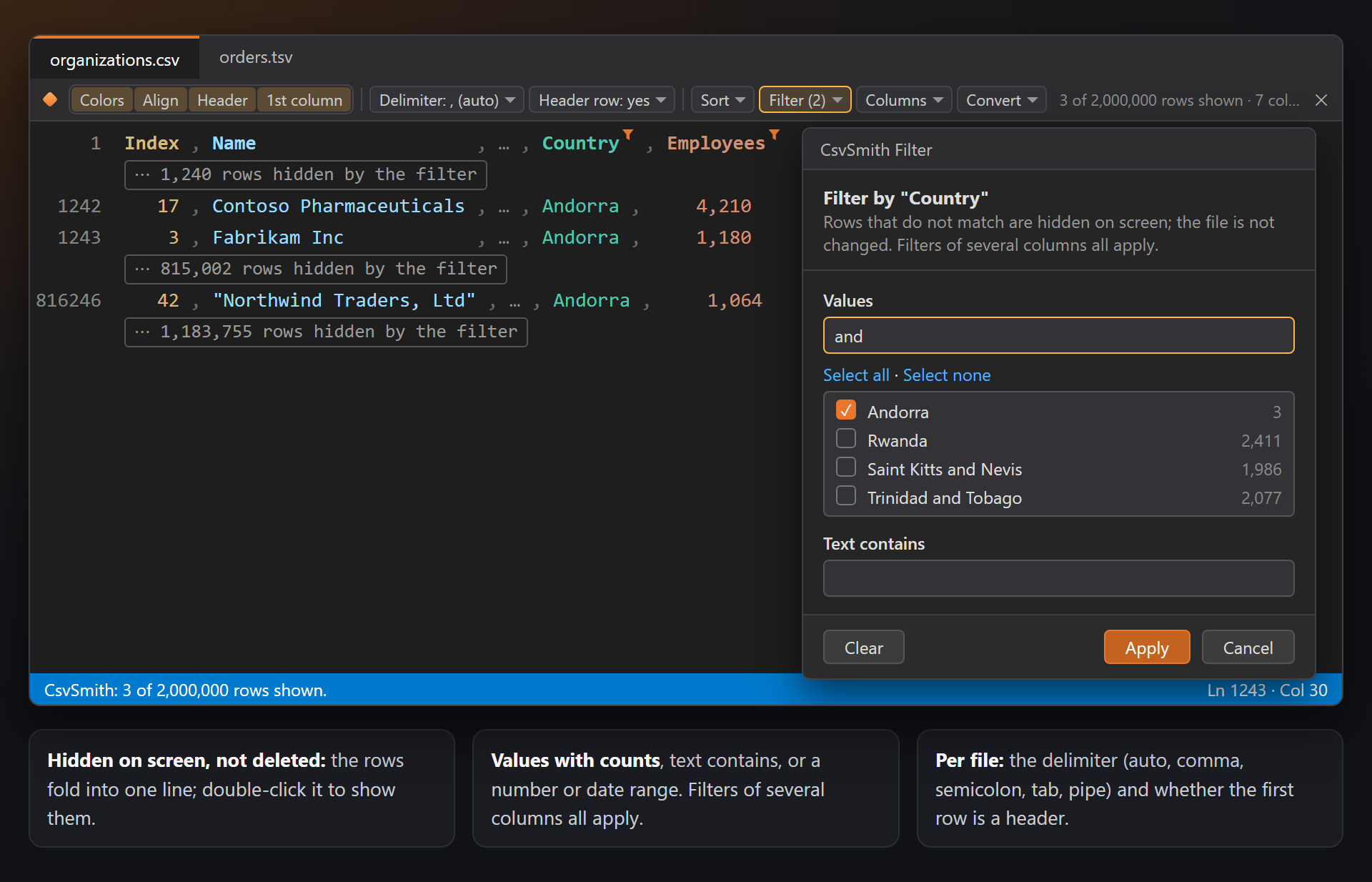
- Filter rows on screen by values, text, or a number or date range; filters of several columns all apply.
- Columns: select, copy, hide on screen, add, delete, move left or right.
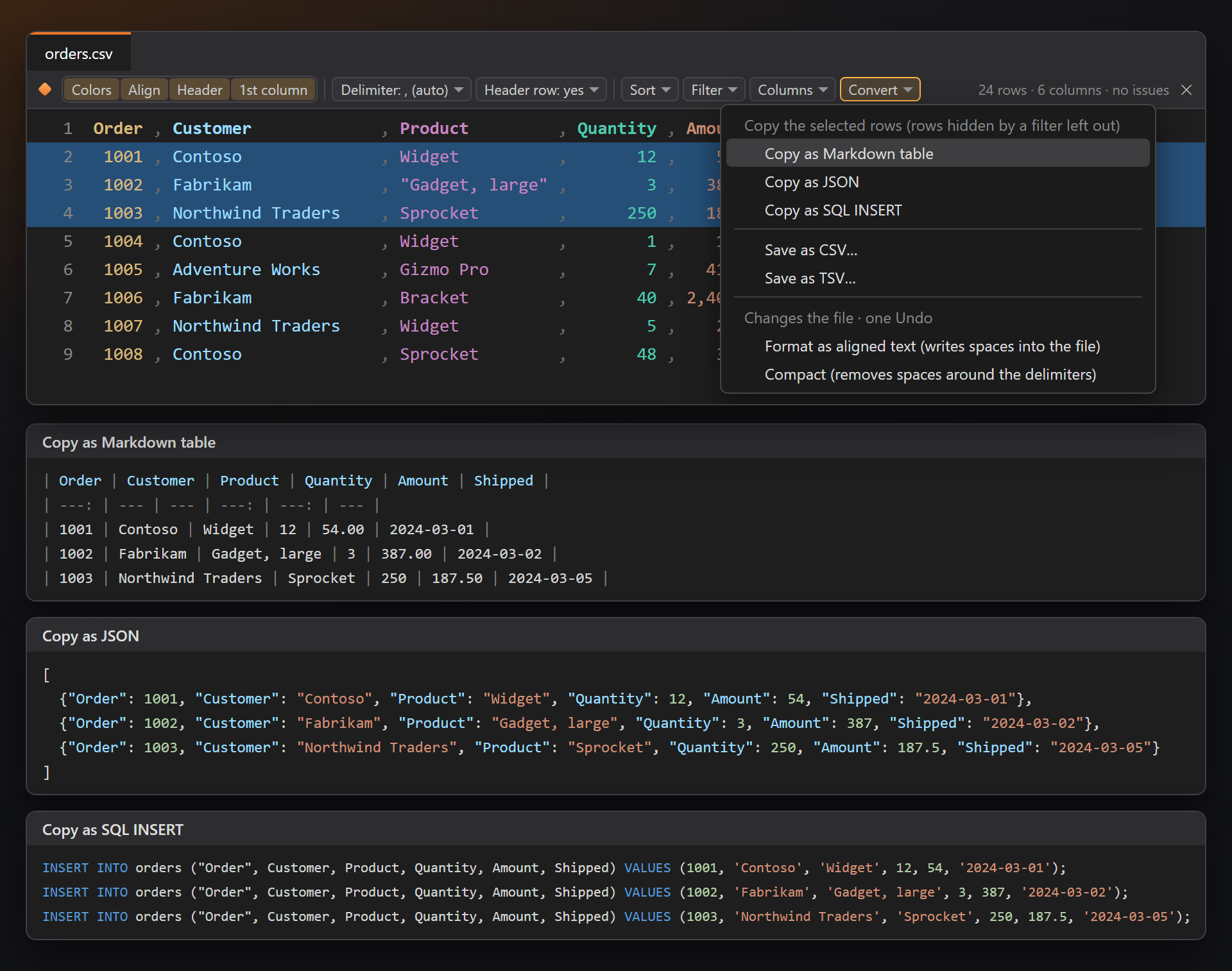
- Convert: copy as a Markdown table, JSON or SQL INSERT; save as CSV or TSV; format the file as aligned text or compact.
- The status bar: the row and column of the caret; for selected cells the count, distinct values and, for numbers, Sum, Avg, Min and Max.
- Hints: Wrong number of fields, Unclosed quote, Duplicate header name.
- .csv, .tsv, .tab and .psv; comma or semicolon detected, quoted fields and line breaks inside quotes read as RFC 4180 says; web addresses in a field are links (Ctrl+Click).
The table in the editor
Open a .csv, .tsv, .tab or .psv file: it stays a text file in the Visual Studio editor — you type, search, select and save as always — and CsvSmith draws it as a table.
| Part | What it does |
|---|---|
| Colors | Each column has its own color, repeated after six columns. The header row is bold and the delimiters are dimmed. Dark themes get bright colors, light themes darker ones of the same hue. |
| Alignment | Spaces are drawn between the fields so the columns line up; they are not in the file. Number columns are aligned to the right. |
| Wide cells | No column is drawn wider than the Widest column setting (40, 60 or 80 characters). A longer value takes the room of the cells after it, and the rest of its row is back in line as soon as there is room. |
| Header row | When the first row scrolls out of view, it stays on top of the editor on a lightly tinted band, in the colors of its columns. A column with a filter has a small orange funnel there. |
| First column | When the table is scrolled to the right, the first column stays on the left edge of the editor, so every row keeps its name or key in sight. |
| Links | A web address in a field is underlined and opens with Ctrl+Click. The link ends at the delimiter — the built-in link detection of Visual Studio would run on into the next field. |
The column on hover
Rest the pointer on a field: the tooltip says which column it is — Column 3: Email · text — and shows the value (whole, even when the cell is cut), the row (Row 5 of 12) and how many rows have a value in the column (Filled 11 of 12 rows). In a big file the counts come from the first rows.
The toolbar
A bar on top of every CSV editor, in the colors of the Visual Studio theme. Everything on it works on the file in that editor.
| Part | What it does |
|---|---|
| Colors · Align · Header · 1st column | Switch the colors, the alignment, the sticky header row and the sticky first column for all table files at once (the same switches as in the settings). |
| Delimiter | Delimiter: , (auto) — the field delimiter: Auto, Comma, Semicolon, Tab or Pipe. Auto takes tab for .tsv and .tab, the pipe for .psv, and for .csv a comma or semicolon from the first lines. A choice is remembered for this file. |
| Header row | Header row: yes — whether the first row names the columns. With no, the first row is data: it is sorted, filtered and copied like the others, and the columns are called Column 1, Column 2… Remembered for this file. |
| Sort · Filter · Columns · Convert | Menus for the column under the caret and for the whole table, described below. |
| Size | At the right: 1,250 rows · 7 columns · no issues; with a filter on, 3 of 2,000,000 rows shown. |
The same commands are in the CsvSmith submenu of the editor's context menu, and each can get a keyboard shortcut in Tools › Options › Environment › Keyboard (search for CsvSmith).
The × at the right end hides the toolbar; Show the toolbar in the settings brings it back.
Sort
Put the caret in a column and choose Sort: A → Z or Z → A as text, smallest or largest first as numbers, oldest or newest first as dates. The menu names the column: By "Amount", as numbers, largest first.
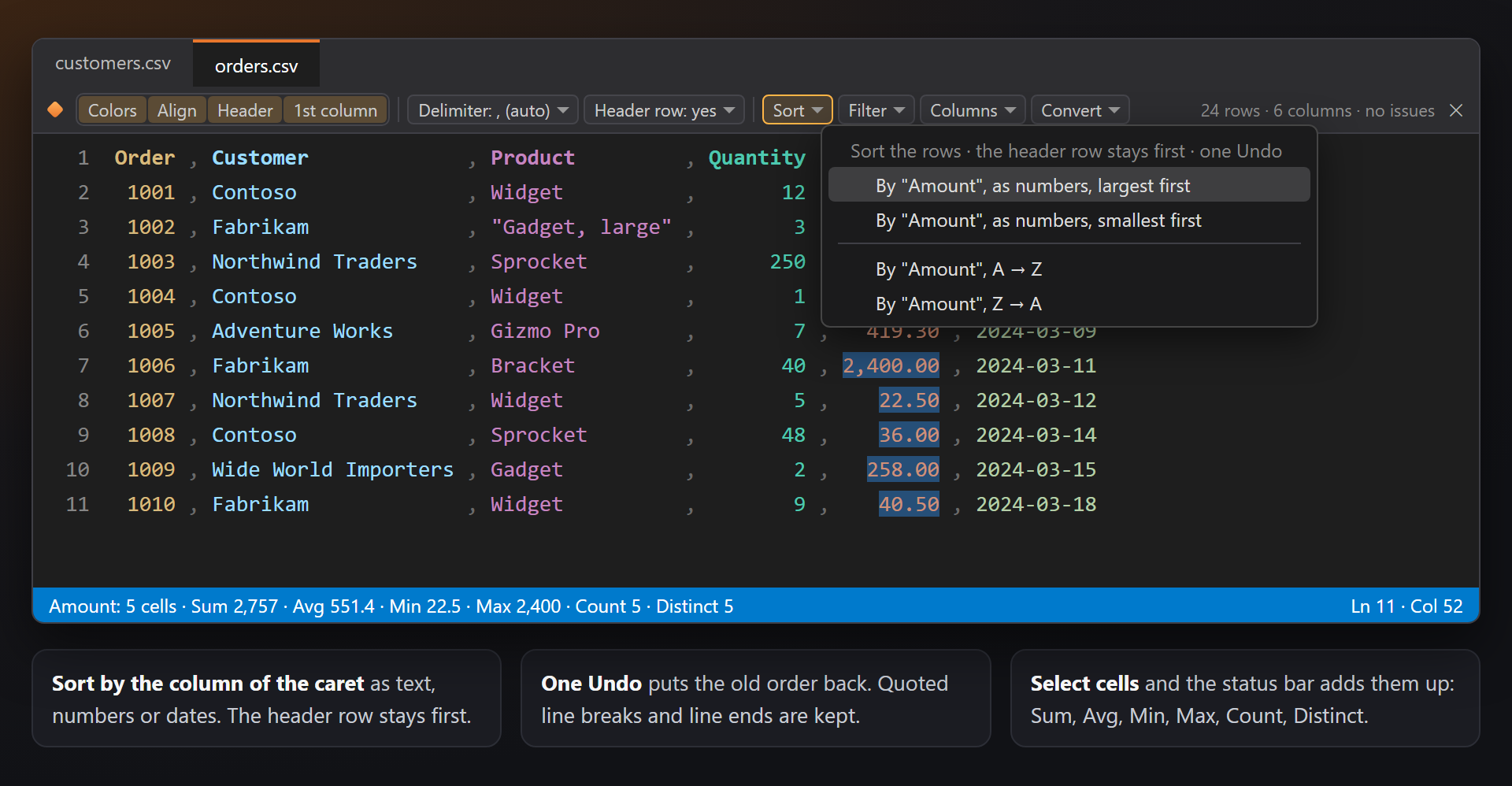
The rows are sorted in the file with one Undo. The header row stays first; records with line breaks inside quotes move whole; the line ends of the file are kept. Values that are not numbers or dates come after the others.
Sorting runs in the background. Files over 100 million characters, and a file with a quote that is never closed, are not sorted — the status bar says why.
Filter
Filter hides the rows that do not match — on screen only, the file is not changed. Choose Filter by "Country"… for the column under the caret: a small dialog lists its values with counts.
| Part | What it does |
|---|---|
| Values | Check the values to keep; a search box narrows the list, Select all and Select none work on what is shown. Up to 1,000 values are listed, with their counts. |
| Text contains | Keeps the rows whose field contains the text; case is ignored. |
| Numbers between · Dates between | For a number or date column: two bounds, either of which may stay empty. A date without a time takes the whole day. |
| Only "value" | In the Filter menu: keep only the rows with the value under the caret, in one click. |
Hidden rows fold into one line — ⋯ 1,240 rows hidden by the filter — that shows them again on a double-click; or, with Name the rows hidden by a filter off, only a small ⋯ at the end of the row above. The toolbar says Filter (2) and 3 of 2,000,000 rows shown; Clear filters shows every row.
The filter belongs to the file: every window of it shows the same rows. After edits, Run the filters again filters the text as it is now. Copies (Convert, Copy column) leave the hidden rows out.
Columns
The Columns menu works on the column under the caret. The first four commands only look; the last ones change the file, each with one Undo.
| Command | What it does |
|---|---|
| Select column | A selection on each field of the column (multiple carets): type to change them all. |
| Copy column | The values of the column, one per line, to the clipboard. |
| Hide column on screen | Its fields are drawn as … so the other columns move closer; the file is not changed. Show all columns brings them back. |
| Add column after | An empty column on the right, with New column in the header row. |
| Delete column | Removes the column from every row. |
| Move column left · Move column right | Swaps the column with its neighbour in every row. |
Convert
Convert copies the whole table — or only the selected rows — in another format. Rows hidden by a filter are left out.
| Command | What it does |
|---|---|
| Copy as Markdown table | A GitHub-style table; number columns marked to align right (---:), | escaped, line breaks as <br>. |
| Copy as JSON | An array of objects keyed by the column names; numbers as numbers in number columns, empty fields there as null. |
| Copy as SQL INSERT | One INSERT INTO orders (…) VALUES (…); per row, the table named after the file; texts in single quotes, numbers bare, empty numbers NULL; a column name that is an SQL keyword goes in double quotes ("Order"). |
| Save as CSV… · Save as TSV… | Writes the table to another file, with commas or tabs, quoting fields where needed. |
| Format as aligned text | Writes the spaces into the file, so the columns line up in any editor. One Undo. |
| Compact | Removes the spaces around the delimiters (outside quotes). One Undo. |
Column and totals in the status bar
The status bar of Visual Studio shows the row and column of the caret. Select cells — with a mouse drag, a box selection (Alt+drag) or Select column — and it shows how many there are and how many distinct values; for numbers also the sum, average, minimum and maximum:
Row 128 · Column 5: Amount
Amount: 24 cells · Sum 18,240.5 · Avg 760.02 · Min 12 · Max 2,400 · Count 24 · Distinct 21
Totals are added up in the background, over at most 100,000 cells.
Hints
Three kinds of hints, shared with the SmithWorks family: each text starts with CsvSmith:, its tooltip has Don't show this kind of hint, and with LensSmith the hint also shows at the end of the line.
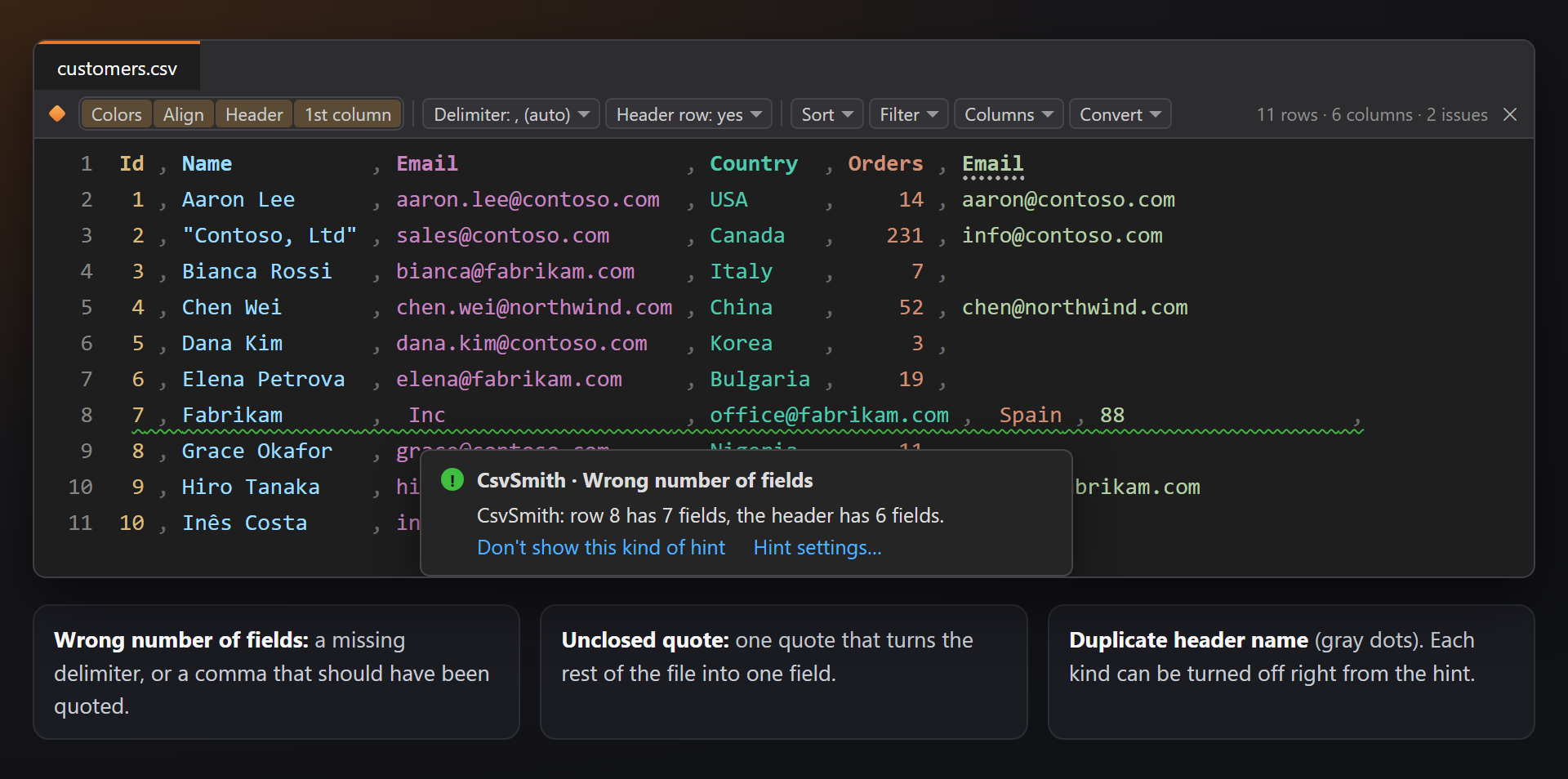
| Hint | When | Text |
|---|---|---|
| Wrong number of fields | A row with more or fewer fields than the header (or the first row, in a file without one): a missing delimiter, or one that should have been quoted. | CsvSmith: row 9 has 7 fields, the header has 6 fields. |
| Unclosed quote | A quote that is never closed turns the rest of the file into one field. | CsvSmith: the quote opened in column 2 is not closed. |
| Duplicate header name | Two columns with the same name in the header row (case is ignored); gray dots. | CsvSmith: "Email" is the header of columns 3 and 6. |
Each kind can be turned off under Hints in the editor in the settings, or right from the hint.
Big files
CsvSmith never parses a whole file to draw it: only the lines on screen are read. It was tested on a CSV file of two million rows — scrolling, colors and alignment stay as fast as in a small file.
A file over 20 MB or 200,000 lines is measured from its first 5,000 rows: the column widths and types, the tooltip counts and the toolbar size (2,000,000 lines · 7 columns · no issues in the first 5,000 rows). Sorting, filtering and copying still go through every row, in the background.
Limits that keep Visual Studio responsive: sort and column edits up to 100 million characters; copies up to 100,000 rows; totals over up to 100,000 cells. When a limit is reached, the status bar says so and nothing is changed.
Settings
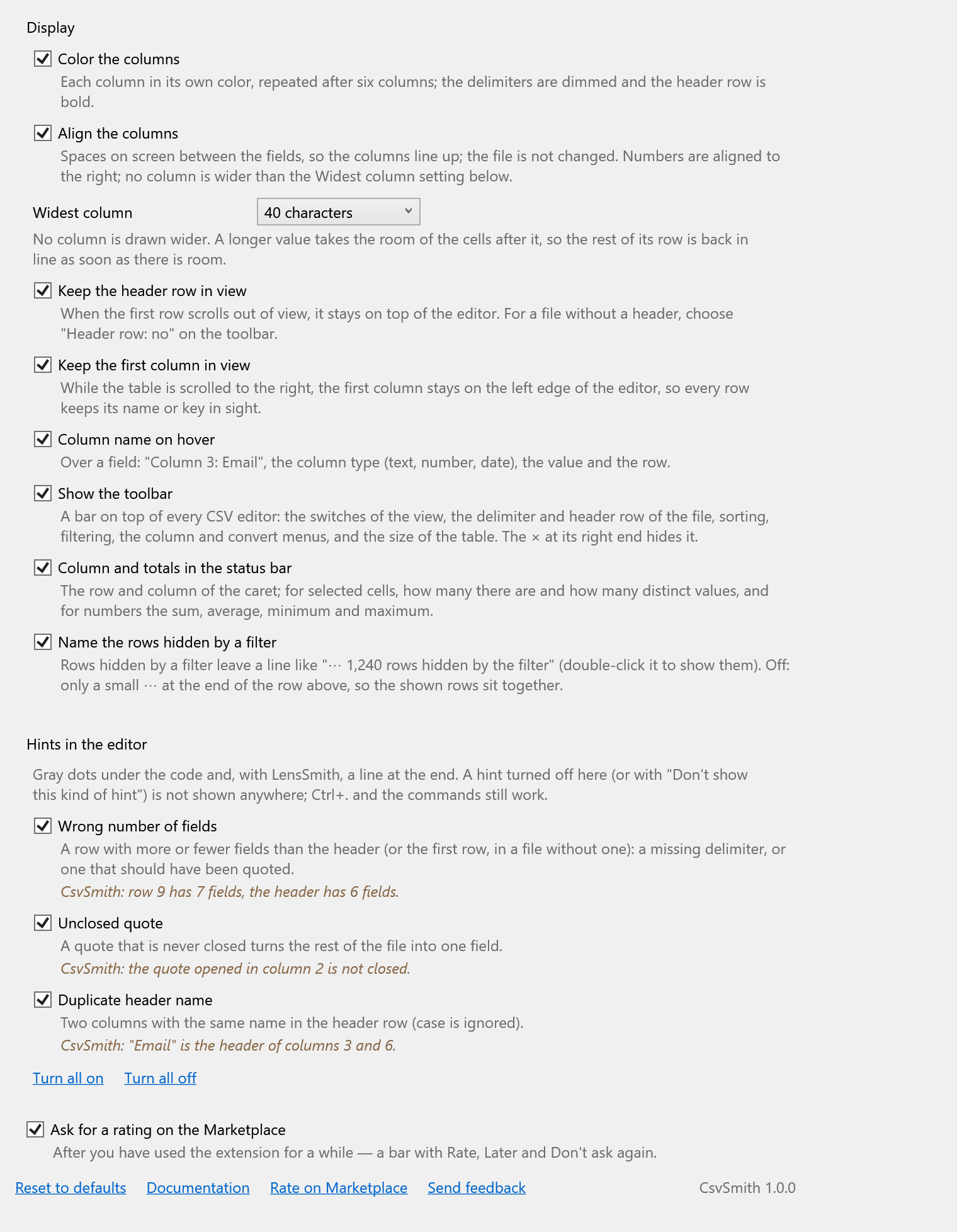
Tools › Options › SmithWorks › CsvSmith. Every option has a short description of what it does.
| Option | Default |
|---|---|
| Color the columns | On |
| Align the columns | On |
| Widest column | 40 characters |
| Keep the header row in view | On |
| Keep the first column in view | On |
| Column name on hover | On |
| Show the toolbar | On |
| Column and totals in the status bar | On |
| Name the rows hidden by a filter | On |
| Hints: Wrong number of fields | On |
| Hints: Unclosed quote | On |
| Hints: Duplicate header name | On |
| Ask for a rating on the Marketplace | On |
Settings, and the delimiter and header row chosen for each file, are stored in %LocalAppData%\CsvSmith. Reset to defaults turns everything back on.
FAQ
Does CsvSmith change my file?
Not by itself. Colors, alignment, the sticky header, filters and hidden columns are drawn on screen only. The file changes only when you choose Sort, Add, Delete or Move column, Format as aligned text or Compact — each is one step in Undo.
My file has another extension (.txt, .dat). Can CsvSmith open it?
CsvSmith works in files with the extensions .csv, .tsv, .tab and .psv. A file with another extension stays plain text; save a copy as .csv (or .tsv) to see it as a table.
The columns are wrong — the file uses semicolons (or tabs).
Click Delimiter on the toolbar and choose Semicolon, Tab, Pipe or Comma. CsvSmith remembers the choice for that file. Auto looks at the first 20 lines of a .csv file to choose between comma and semicolon.
My file has no header row.
Choose Header row: no on the toolbar. The first row is then data: it is not pinned or bold, and it is sorted, filtered and copied like the others. Remembered for that file.
Sort went wrong. How do I get the old order back?
Edit › Undo (Ctrl+Z) once: the whole sort is one step, named Sort Rows. The same holds for the column edits and the formats.
Does a big file slow Visual Studio down?
No. Only the lines on screen are parsed, a big file is measured from its first rows, and the long work — sorting, filtering, copying, totals — runs in the background. If a file is beyond a limit, the status bar says so.
Does CsvSmith send anything anywhere?
No. It reads the files you open in the editor and nothing else — no telemetry, no requests. The settings stay on your computer.
Where do I report a problem or suggest a feature?
Open an issue in the Feedback repository on GitHub — there are forms for bugs and ideas (please change private data in samples). You can also use the Q&A tab on the Marketplace.
Changelog
1.0.0
- First release: column colors, alignment on screen, the sticky header row and first column, the column on hover, the toolbar with the delimiter and header row per file, Sort with one Undo, Filter, Columns, Convert (Markdown, JSON, SQL INSERT, CSV, TSV, aligned, compact), links per cell, the column and totals in the status bar, the hints Wrong number of fields, Unclosed quote and Duplicate header name; a one-time request for a rating.
- Before it: 0.1 colors, alignment, sticky header and hints; 0.2 toolbar, status bar totals, wide cells, sort, links; 0.3 filter, column tools and convert.