BuildSmith
What your build did and why it took that long. After every build, the status bar shows its time and the change against the previous one; the Build Timeline window shows every project on a timeline — which ran in parallel, which waited, and the critical path that decided the total.
Free · Visual Studio 2022 and 2026 · 14 UI languages · no telemetry
Why BuildSmith
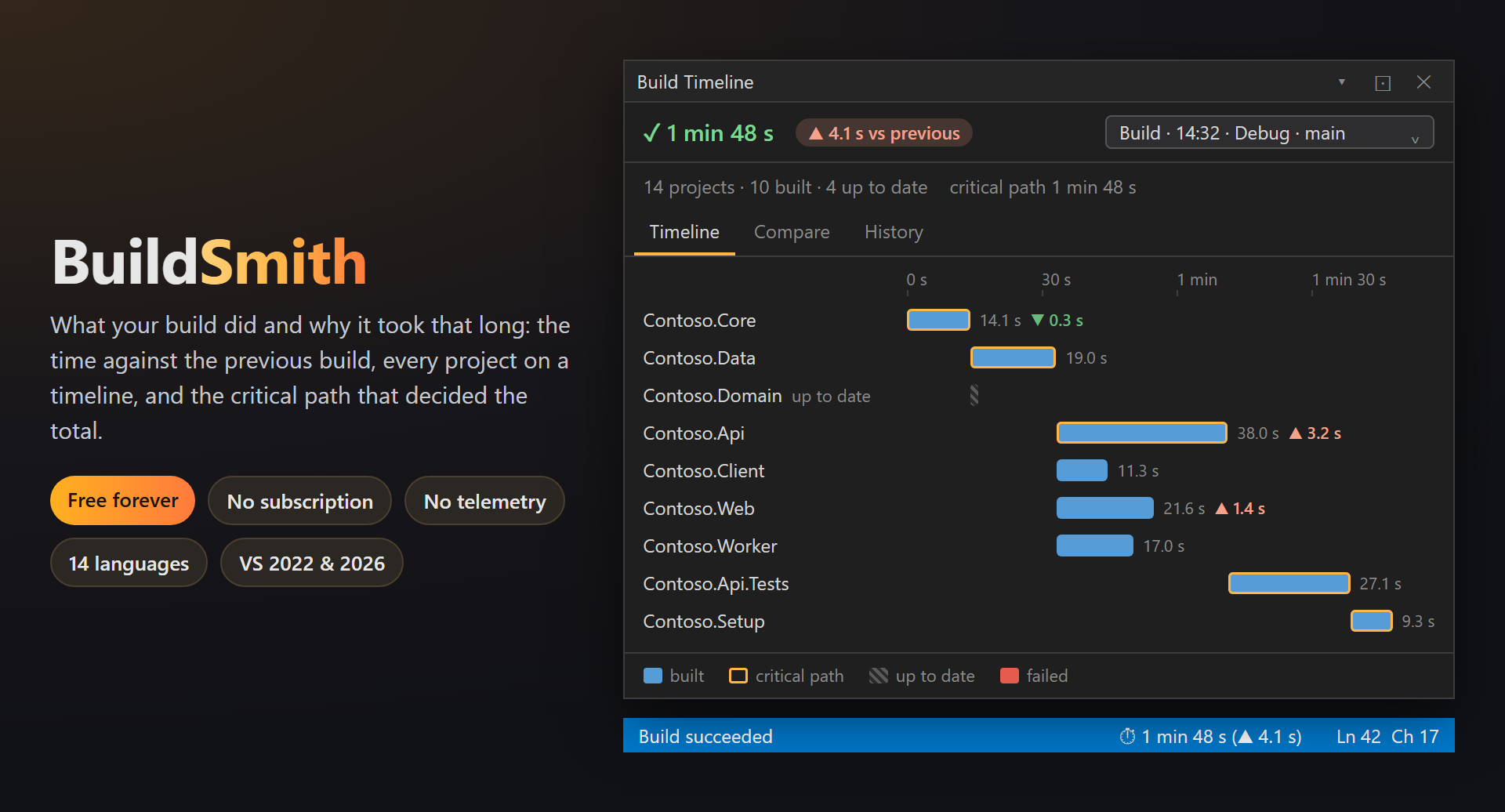
Where the time went
The Output window says that the build took 1 min 48 s. The timeline says which projects took it, which of them ran side by side, and which chain of projects the whole build had to wait for.
Compared with a like build
A Debug build on main is compared with the previous Debug build on main — not with a Rebuild, a Release build or another branch. So ▲ 4.1 s means something.
Quiet
No window opens by itself, nothing pops up: one line in the status bar after the build. When recording is off, BuildSmith really sleeps — it does not even listen to build events.
Free, without strings attached
No subscriptions, no "pro" version, no data collection, no messages in the Output window or at startup. The history stays on your computer. The only thing we will ever ask — after you have used it for a while — is a rating on the Marketplace. Works on Visual Studio 2022 and 2026, x64 and ARM64.
Features
- The time in the status bar after every build, with the change against the previous comparable build:
⏱ 1 min 48 s (▲ 4.1 s). - The Build Timeline window: one bar per project in the order they started, the critical path outlined, up-to-date projects hatched, failed ones in red, and the change against the previous build next to each bar.
- Never up to date: projects that are built on every incremental build although most of the solution was up to date — and what they cost per build.
- History of every build of the solution, kept for a week by default: search, date ranges, a calendar, and bars that show at a glance which build was slow.
- Labels — "before the fix", "new SDK" — in one of five colors or your own; a labeled or kept build is never deleted by age.
- Compare 2 to 10 builds: the trend of the totals and a table of projects × builds with colored changes, sparklines and the critical path — copied as Markdown for a pull request.
- Turn it off without uninstalling: for one solution or everywhere; the history stays.
The build at a glance
Open Build › Build Timeline (also in View › Other Windows and on the SmithWorks toolbar). The window shows the last build — or any build from the history — with a summary at the top and one bar per project below.
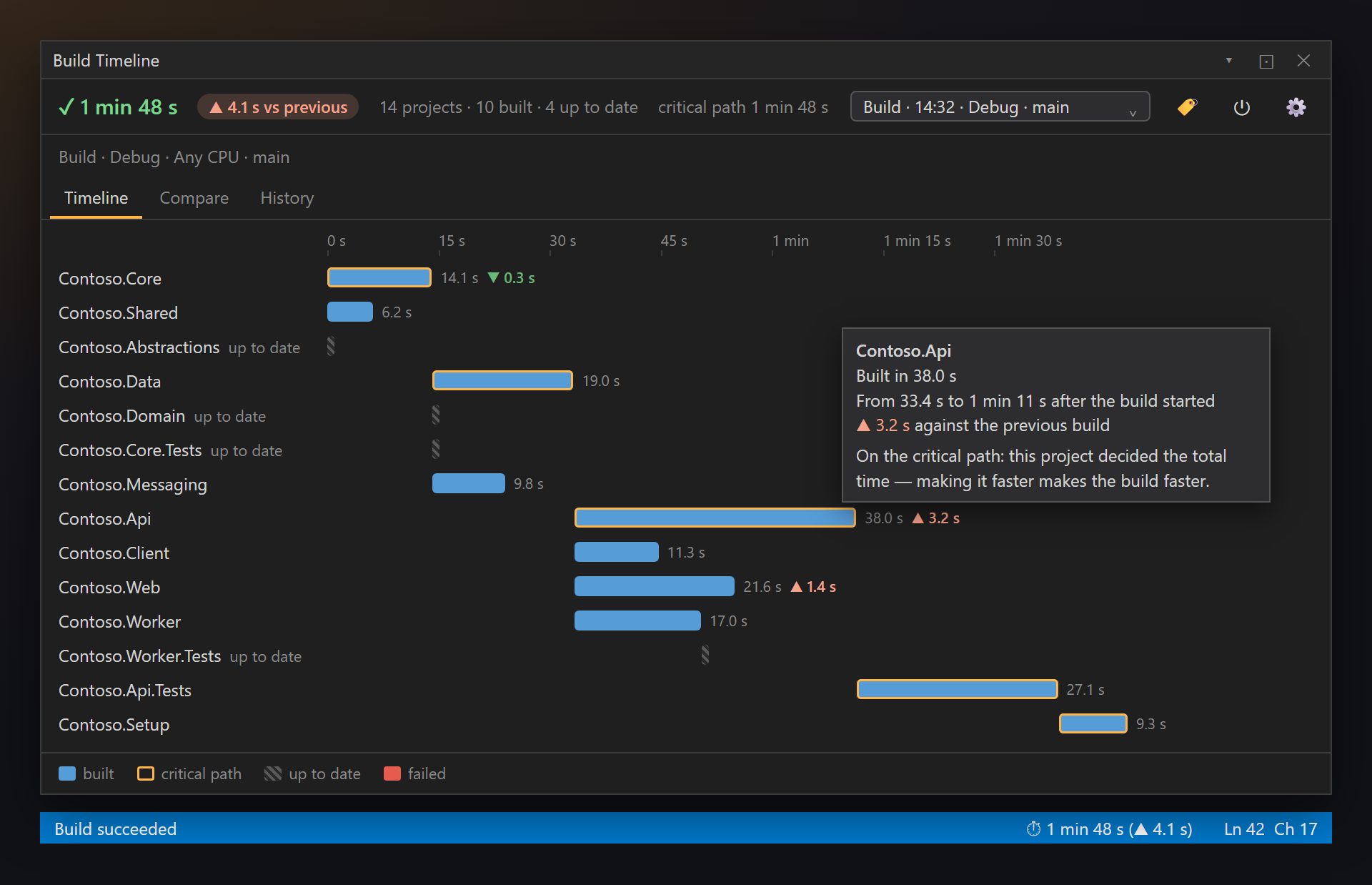
The time in the status bar
After every build, the status bar of Visual Studio shows its time and the change against the previous comparable build: ⏱ 1 min 48 s (▲ 4.1 s) — ▲ slower, ▼ faster. It is the only thing BuildSmith shows on its own, and it can be turned off in the settings.
Comparable means the same kind of build (Build or Rebuild), the same configuration, the same platform and the same Git branch. If there is no such build yet, only the time is shown.
The header
The top of the window sums up the shown build:
| On screen | Meaning |
|---|---|
| ✓ 1 min 48 s ▲ 4.1 s vs previous | The result (succeeded or failed), the total time, and a badge with the change against the previous comparable build; its tooltip says how long that build took and when. |
| 14 projects · 9 built · 5 up to date · 1 failed | How many projects took part, how many were really built, how many were skipped as up to date, and how many failed. |
| critical path 1 min 31 s · Debug · Any CPU · main | The length of the critical path, then the configuration, the platform and the Git branch of the build. |
| The build picker | Any recorded build of the solution: the timeline switches to it. |
| 🏷 ⏻ ⚙ | 🏷 labels the shown build, ⏻ turns recording on or off, ⚙ opens the settings. |
The bars
| On screen | Meaning |
|---|---|
| Blue bar | A project that was built, one row per project in the order they started: the bar begins where the project really began after the build started and is as long as it took. Bars that overlap ran in parallel, so you see how parallel the build really was. |
| Orange outline | The critical path: the chain of projects, each waiting for the previous one, that decided the total time. Making one of them faster makes the build faster; the other projects ran alongside. |
| Hatched stub | Up to date: skipped, nothing in it changed. |
| Red bar | The project failed to build. |
| ▲ 2.4 s | Next to each bar: its time and, when it is notable, the change against the same project in the previous comparable build. |
Hover a bar for the details: how long the project took, from when to when after the build started, the change against the previous build, and whether it was on the critical path.
The window can stay open while you work: it moves to every new build by itself. The tabs Timeline, Compare and History are at the top.
Never up to date
Some projects are built on every build, even when nothing in them changed. Each time it costs a few seconds, and nobody notices. BuildSmith does: above the timeline of an incremental build, a strip says how many such projects there are and what they cost per build. It folds open into the list of projects; their rows on the timeline get the ⟳ mark.
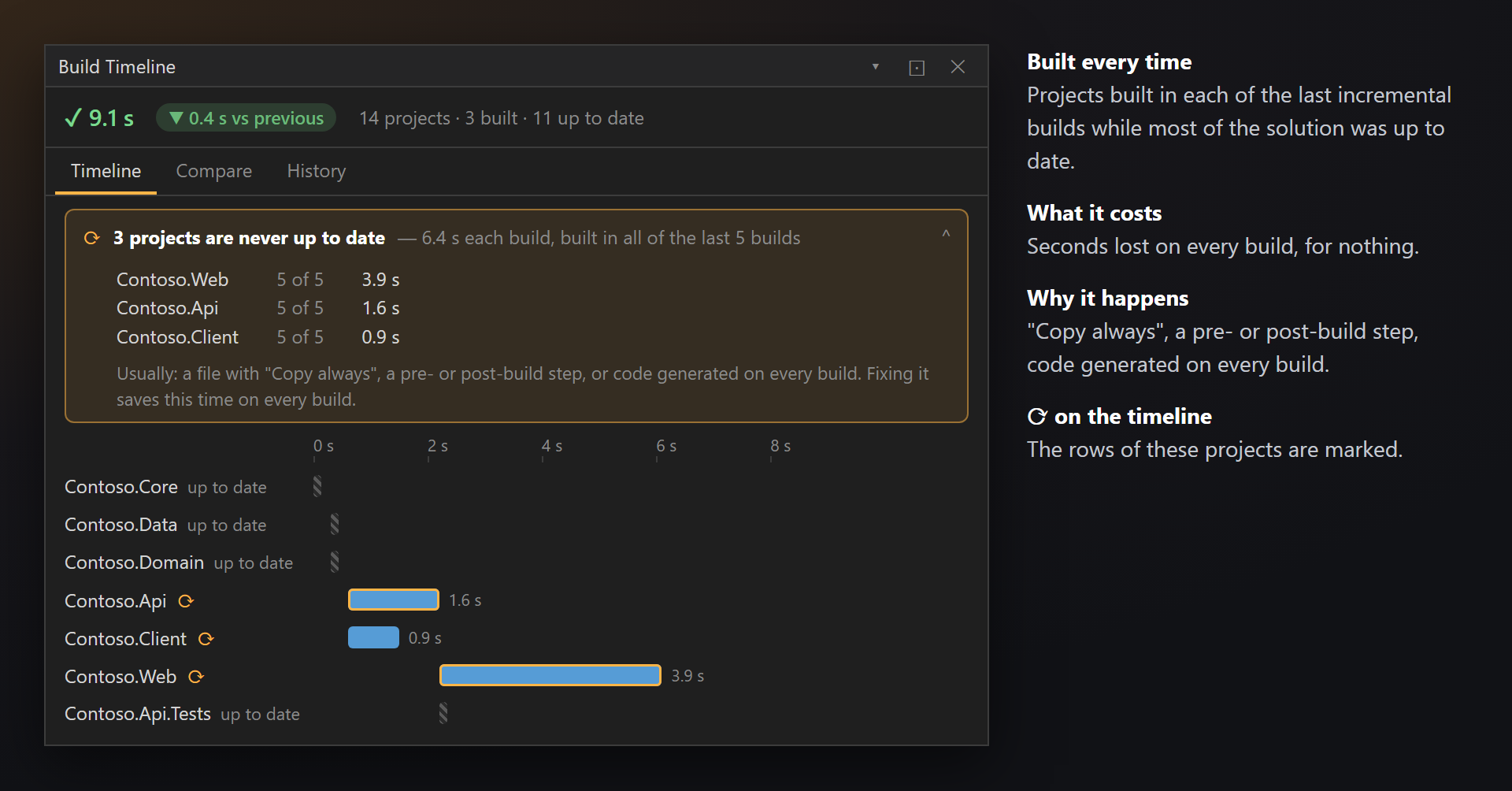
The rule: a project is pointed out when it was built in every one of the last 3 to 5 incremental builds of the same configuration and branch, while more than half of the solution was up to date. Rebuilds do not count — there everything is built on purpose.
The usual causes:
- a file with Copy to Output Directory: Copy always — Copy if newer is enough;
- a pre-build or post-build step that touches a file the project depends on;
- code generated on every build, even when its source has not changed.
Fixing it saves that time on every build. The strip can be turned off in the settings: Point out projects that are never up to date.
History
The History tab lists the recorded builds of the solution, newest first, grouped by day. Each row shows the time, the kind of build, the configuration and branch, its label, and a bar proportional to the build time — a slow build stands out at once.
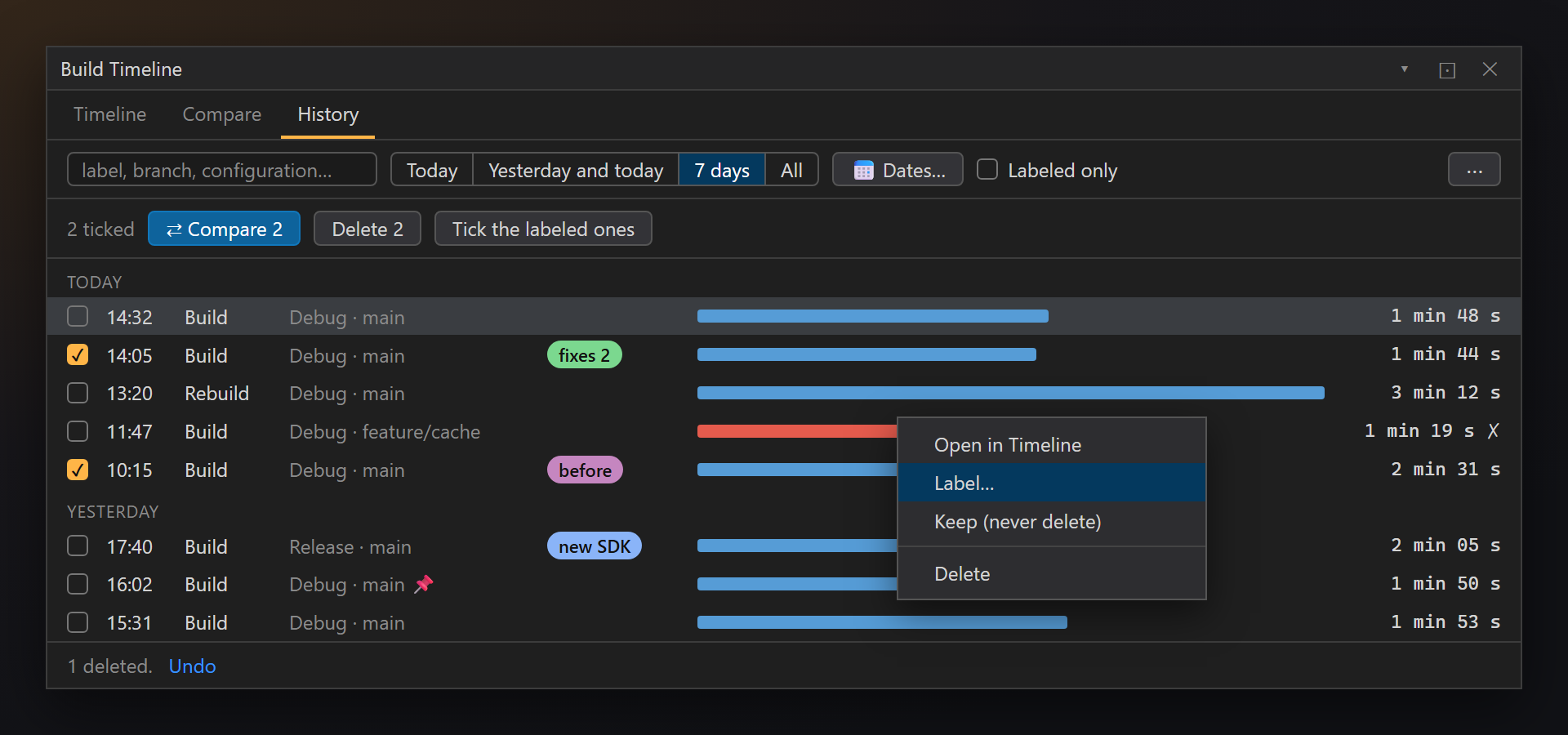
Find a build
Type in the search box — every word must be found in the label, the branch, the configuration or the kind of build. Narrow it by date with Today, Yesterday and today, 7 days or All, or pick dates in the calendar (Dates…). Labeled only leaves the builds you labeled.
Open, label, keep, delete
Click a build (or press Enter) to open it on the timeline. Right-click for Open in Timeline, Label…, Keep (never delete) and Delete. The Delete key deletes the build, with Undo for a few seconds. The ⋯ menu deletes builds older than a date, clears the history of this solution or of all solutions.
Tick builds to compare them or to delete several at once. Tick the labeled ones ticks every shown build that has a label — the quickest way to compare "before" and "after".
How long builds are kept
Builds are kept only on this computer, in %LocalAppData%\BuildSmith, one history per solution — for 1 day, 3 days, 1 week (the default), 2 weeks or 1 month. Older builds are deleted when the solution opens or a build ends. Labeled and kept builds stay however old they are.
Labels
🏷 in the header (or Label… in the History menu) gives a build a short text and a color: one of five, or one of your own from a small picker with a palette and recent colors. Recently used labels are offered again with one click, so a series of builds can share one label.
A labeled build is never deleted by age (unless you turn off Keep labeled builds). Keep (never delete) pins a build without a label.
Recording
⏻ in the header chooses whether builds are recorded:
| Choice | What happens |
|---|---|
| Record builds | The default: every build is timed and kept in the history. |
| Not for this solution | This solution is no longer recorded; others still are. The settings list such solutions, with Record again. |
| Off everywhere | BuildSmith sleeps in every solution. |
Asleep, BuildSmith truly does nothing: it does not subscribe to build events, writes nothing to the status bar or the disk. The history stays, and the window offers Record builds again.
Compare builds
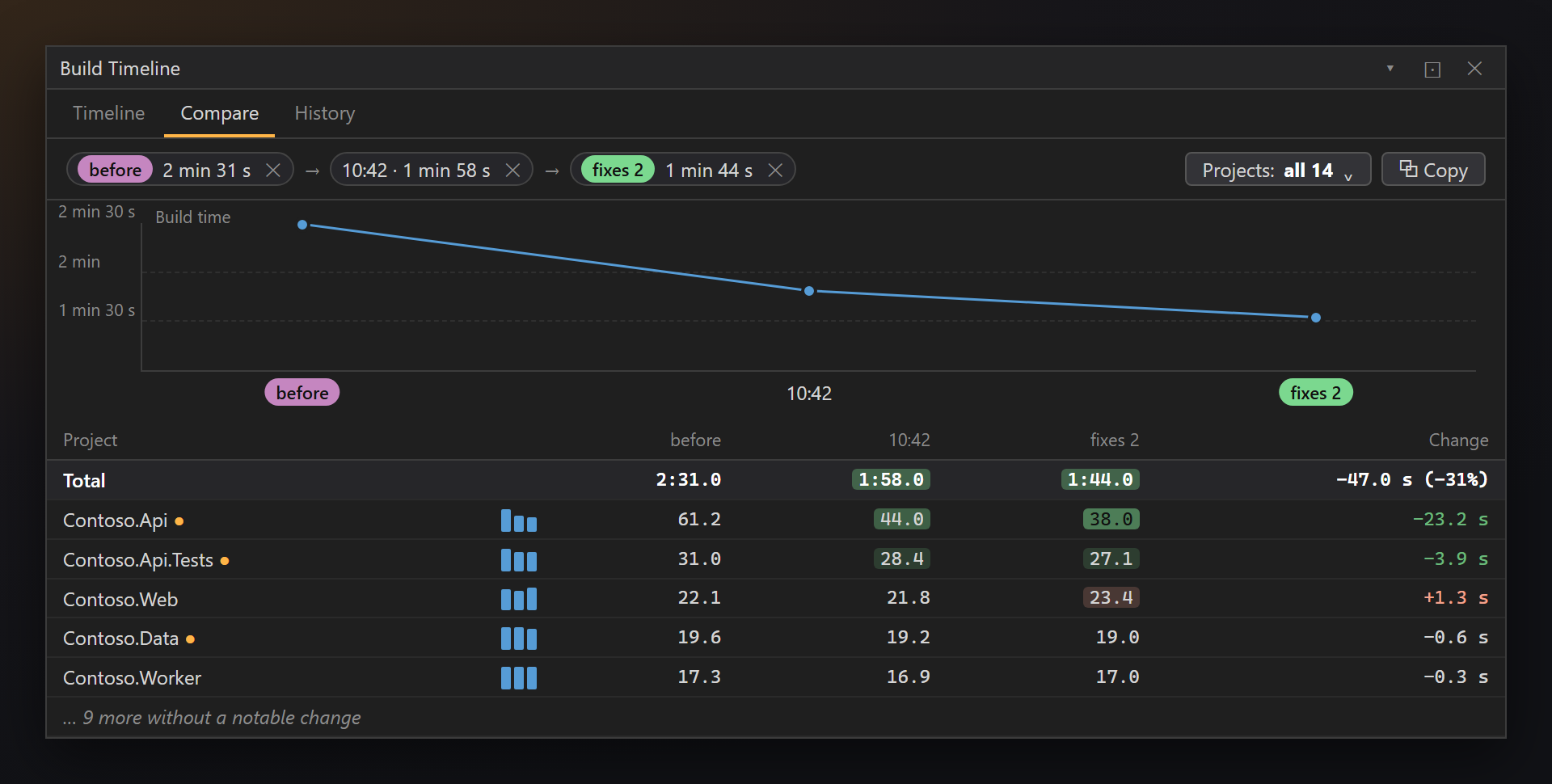
The Compare tab puts builds side by side: did the fix help, which project got slower after the update, how the build time went over the week.
Pick the builds
Tick 2 to 10 builds in History and press ⇄ Compare N. Without ticks, Compare shows the shown build against the previous comparable one. The builds appear as chips at the top; ✕ takes one out of the comparison.
The trend and the table
A small chart shows the total time of each build. Below it, a table of projects × builds: each cell is colored by the change against the first build — warmer is slower, green is faster — with a sparkline, the change, and ● where the project was on the critical path. Projects without a notable change are folded into … N more without a notable change.
Only the projects you care about
Projects: … filters the table: All projects (N), Changed notably (N), On critical path (N) or Only the ticked ones, with a search box. The filter is remembered per solution, and the trend then sums the time of the filtered projects — the trend of your projects, not of the whole solution.
One project across the builds
Click a project for its bars in every compared build; an outlined bar means it was on the critical path of that build. ‹ All projects goes back.
Copy as Markdown
⧉ Copy puts the table as you see it — the same builds, the same filter — on the clipboard as a Markdown table, ready for a pull request or a chat. In the one-project view it copies that project.
Settings
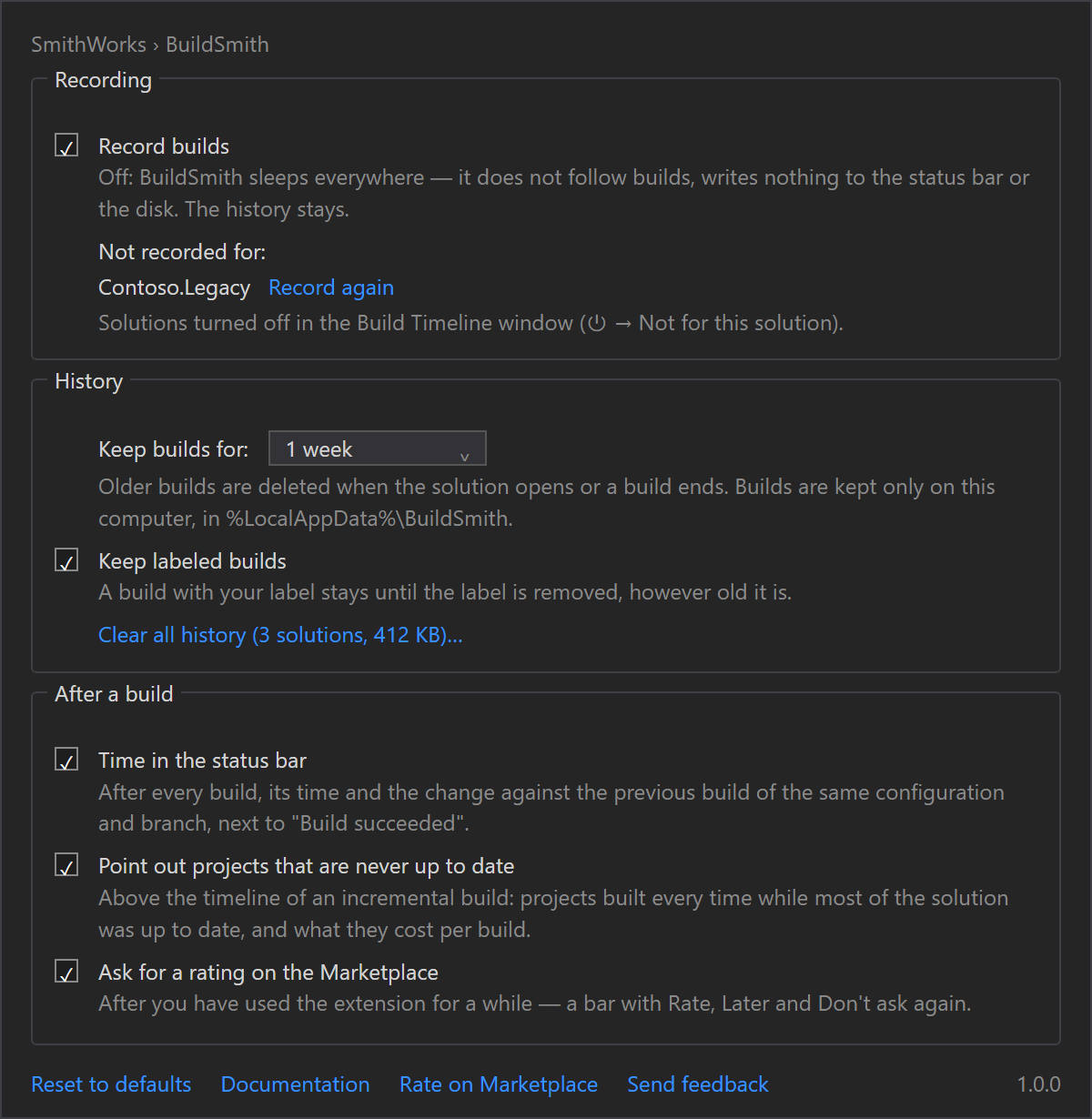
Tools › Options › SmithWorks › BuildSmith (or ⚙ in the Build Timeline window). Every option has a short description of what it does.
| Option | Default |
|---|---|
| Record builds | On |
| Not recorded for: | No solution is turned off. |
| Keep builds for: | 1 week |
| Keep labeled builds | On |
| Time in the status bar | On |
| Point out projects that are never up to date | On |
| Ask for a rating on the Marketplace | On |
Clear all history (N solutions, size)… deletes the recorded builds of every solution and asks whether to keep the labeled and kept ones. At the bottom: Reset to defaults, Documentation, Rate on Marketplace and Send feedback.
Settings and the history are stored in %LocalAppData%\BuildSmith.
FAQ
Does BuildSmith send any data?
No. Build times are taken from the build events of Visual Studio and kept on your computer, in %LocalAppData%\BuildSmith. No network requests, no telemetry.
Why is there no change next to the time?
There is no comparable build yet: the same kind (Build or Rebuild), configuration, platform and branch. Build once more, and the change appears.
What exactly is the critical path?
The chain of projects that the build had to wait for: each one started only after the previous one ended. Its length is the shortest the build could be with these projects, however many cores you have. Speeding up a project off the critical path does not shorten the build.
The window stays empty after a build.
Check that recording is on (⏻ in the window, Record builds in the settings) and that this solution is not in the Not recorded for list. Builds started outside Visual Studio (dotnet build on the command line) are not recorded.
Does BuildSmith slow the build down?
No. It listens to the start and end of each project that Visual Studio reports anyway and writes one small file after the build. It does not change the build or its logging.
How much disk space does the history take?
Very little: a build is a short list of projects with their times. The settings show the size next to Clear all history, and old builds go by themselves after the chosen period.
Where do I report a problem or suggest a feature?
Open an issue in the Feedback repository on GitHub — there are forms for bugs and ideas (please change private names). You can also use the Q&A tab on the Marketplace.
Changelog
1.0.0
- First release: the build time and its change in the status bar, the Build Timeline window with the critical path, projects that are never up to date, the history with search, dates and labels, Compare of up to 10 builds with Markdown copy, recording on and off per solution, the SmithWorks toolbar, a one-time request for a rating.